The usage guide for the UNS Studio theme for Salla stores, built from the theme’s own files: its sections, their controls and its global settings. The names and options below are what you will see in the theme editor. Selling on Zid? That version has its own guide.
Getting started
These steps are for a merchant who has the theme on their Salla store. Button names in the Salla dashboard belong to Salla and may change; check Salla's help centre when they differ.
- Install the theme on your storeUNS Studio is installed like any Salla theme, from the themes area of your store’s dashboard, once it is available to you. Check the availability status on the theme page.
- Open the theme editorFrom the Salla dashboard open your store’s theme editor and choose the language you want to edit: Arabic and English keep separate text.
- Set the global settingsIn the theme settings choose brand colours, button and card corners and page margins, then set the header, footer and announcement bar. Details are in Global settings.
- Add the home sectionsFrom the section catalogue add the sections you need from the fourteen, and set their order. Their editor names are listed in the sections list.
- Fill in the contentWrite the text, upload images (desktop and mobile), set links, and pick products and categories from your store. Then switch language and fill in the other language.
- Check desktop and mobileUse the editor’s desktop and mobile preview; make sure text is readable over images and that no image crops something important.
- Save and publishSave your changes and publish them the way Salla asks. If they do not show on the store, see Troubleshooting.
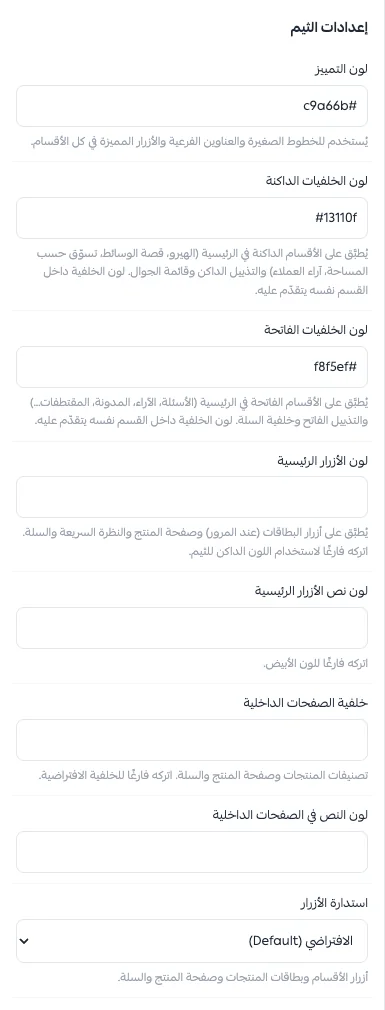
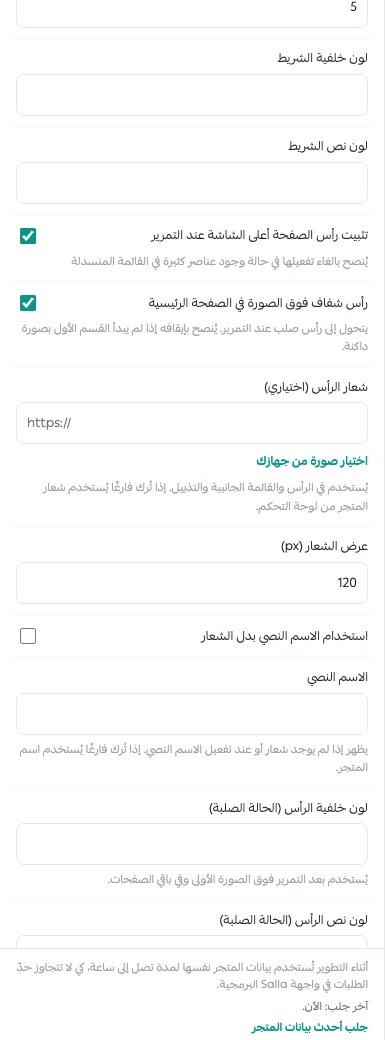
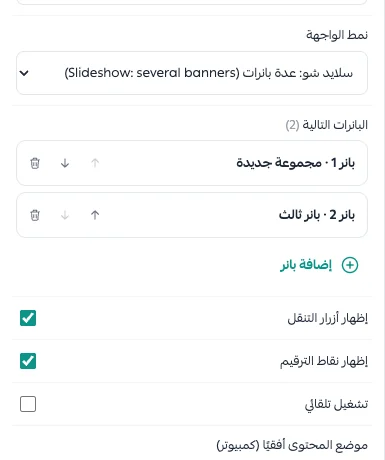
The editor screenshots above come from Salla's official local theme editor, running in Arabic. The editor in your dashboard may look slightly different, but the option names are the same.
For developers and agenciesrunning the theme locally
Requirements: Node.js 20.19 or newer, pnpm 10 or newer, git and Salla CLI 3.x. Check with salla theme doctor.
pnpm install
pnpm dev                      # or: salla theme dev --store <store id>
# storefront: http://localhost:5173/ar  and  /en   (never /)
# local editor: http://localhost:5173/__twilight/editor
The local editor keeps its state in a twilight.preview.json file on your machine only; it does not change any merchant's real home page.
Global settings
These settings affect the whole theme. Theme-wide colours are used by the sections unless a section sets its own.
Theme identity & colours11
| Control | Type / choices | Note |
|---|---|---|
| Accent colour (brass) | Colour | يُستخدم للخطوط الصغيرة والعناوين الفرعية والأزرار المميزة في كل الأقسام. |
| Dark surface colour | Colour | يُطبَّق على الأقسام الداكنة في الرئيسية (الهيرو، قصة الوسائط، تسوّق حسب المساحة، آراء العملاء) والتذييل الداكن وقائمة الجوال. لون الخلفية داخل القسم نفسه يتقدّم عليه. |
| Light surface colour | Colour | يُطبَّق على الأقسام الفاتحة في الرئيسية (الأسئلة، الآراء، المدونة، المقتطفات…) والتذييل الفاتح وخلفية السلة. لون الخلفية داخل القسم نفسه يتقدّم عليه. |
| Primary button colour | Colour | يُطبَّق على أزرار البطاقات (عند المرور) وصفحة المنتج والنظرة السريعة والسلة. اتركه فارغًا لاستخدام اللون الداكن للثيم. |
| Primary button text colour | Colour | اتركه فارغًا للون الأبيض. |
| Inner pages background | Colour | تصنيفات المنتجات وصفحة المنتج والسلة. اتركه فارغًا للخلفية الافتراضية. |
| Inner pages text colour | Colour | |
| Button corners | Default · Sharp · Soft · Round | أزرار الأقسام وبطاقات المنتجات وصفحة المنتج والسلة. |
| Image & card corners | Default · Sharp · Soft · Round | تُطبَّق على صور بطاقات المنتجات (القوائم والأقسام) ومعرض صور صفحة المنتج. |
| Page side margins | Compact · Standard · Wide | |
| Use the store font from the dashboard | On / off | عند التفعيل يُطبَّق الخط الذي تختاره في إعدادات المتجر على الثيم كاملًا بدل خط Cairo المرفق مع الثيم. |
General5
| Control | Type / choices | Note |
|---|---|---|
| WhatsApp number | Text | بصيغة دولية بدون + أو أصفار. اتركه فارغًا لإخفاء زر واتساب. |
| Default WhatsApp message | Text | |
| WhatsApp button side | End · Start | |
| Smooth scrolling | On / off | |
| Custom CSS | Long text | للمستخدمين المتقدمين فقط. |
Announcement bar6
| Control | Type / choices | Note |
|---|---|---|
| Show announcement bar | On / off | |
| Announcement messages | Repeating items (up to 5): Text, Link (optional) | |
| Scrolling marquee | On / off | عند الإيقاف تتبدل الرسائل بالتدريج واحدة بعد الأخرى. |
| Seconds per message | Number (2–15) | |
| Bar background | Colour | |
| Bar text colour | Colour |
Header14
| Control | Type / choices | Note |
|---|---|---|
| Transparent header over the home hero | On / off | يتحول إلى رأس صلب عند التمرير. يُنصح بإيقافه إذا لم يبدأ القسم الأول بصورة داكنة. |
| Header logo (optional) | Image | يُستخدم في الرأس والقائمة الجانبية والتذييل. إذا تُرك فارغًا يُستخدم شعار المتجر من لوحة التحكم. |
| Logo width (px) | Number (60–240) | |
| Use text wordmark instead of the logo | On / off | |
| Wordmark text | Text | يظهر إذا لم يوجد شعار أو عند تفعيل الاسم النصي. إذا تُرك فارغًا يُستخدم اسم المتجر. |
| Header background (solid state) | Colour | يُستخدم بعد التمرير فوق الصورة الأولى وفي باقي الصفحات. |
| Header text colour (solid state) | Colour | |
| Header text colour over the hero | Colour | |
| Show search | On / off | |
| Show account | On / off | |
| Show wishlist | On / off | |
| Show language & currency | On / off | يظهر فقط إذا كان للمتجر أكثر من لغة أو عملة. |
| Mega menu | On / off | تظهر عند المرور على عنصر في القائمة الرئيسية له عناصر فرعية. عند إيقافها لا تظهر العناصر الفرعية في قائمة الكمبيوتر (تبقى في قائمة الجوال). |
| Show category image cards in the mega menu | On / off |
Mobile2
| Control | Type / choices | Note |
|---|---|---|
| Mobile bottom navigation bar | On / off | التصميم المعتمد بدون شريط سفلي. كل خدماته متاحة من القائمة الجانبية. |
| Drawer contact heading | Text |
Footer19
| Control | Type / choices | Note |
|---|---|---|
| About text | Long text | تظهر تحت الشعار. اتركها فارغة لإخفائها. |
| Show text wordmark instead of the logo | On / off | |
| Footer menu title | Text | عنوان العمود إذا كانت قائمة التذييل بدون مجموعات فرعية. |
| Collections column (from the main menu) | On / off | |
| Collections column title | Text | |
| Show contact details | On / off | |
| Show social icons | On / off | |
| Show payment methods | On / off | |
| Show tax number & business certificate | On / off | |
| Copyright text | Text | اتركه فارغًا لعرض اسم المتجر والسنة. |
| Side line | Text | |
| Show trust strip | On / off | أضف عناصره بنفسك (دفع آمن، شحن، استبدال…). |
| Trust strip items | Repeating items (up to 4): Icon, Text | Shown when: Show trust strip = on |
| Footer background | Colour | |
| Text colour | Colour | |
| Headings colour | Colour | |
| Links colour | Colour | |
| Links hover colour | Colour | |
| Divider lines colour | Colour |
Home sections
The theme has 14 home sections. Add what you need from the editor's section catalogue, and set their order. Each guide below lists the controls, the images and how the section behaves on desktop and mobile.
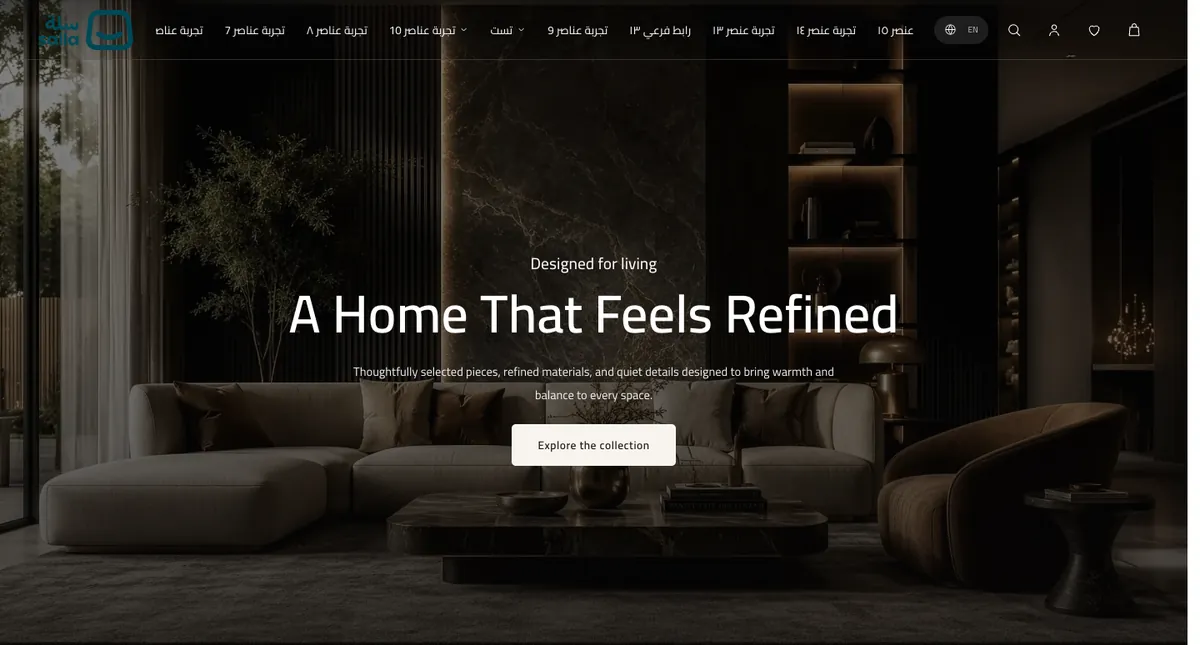
The screenshots are the theme itself running on a Salla demo store's data, so product, category and article names come from that store and some are Arabic even in the English screenshots. What you see in your own store is whatever you write.
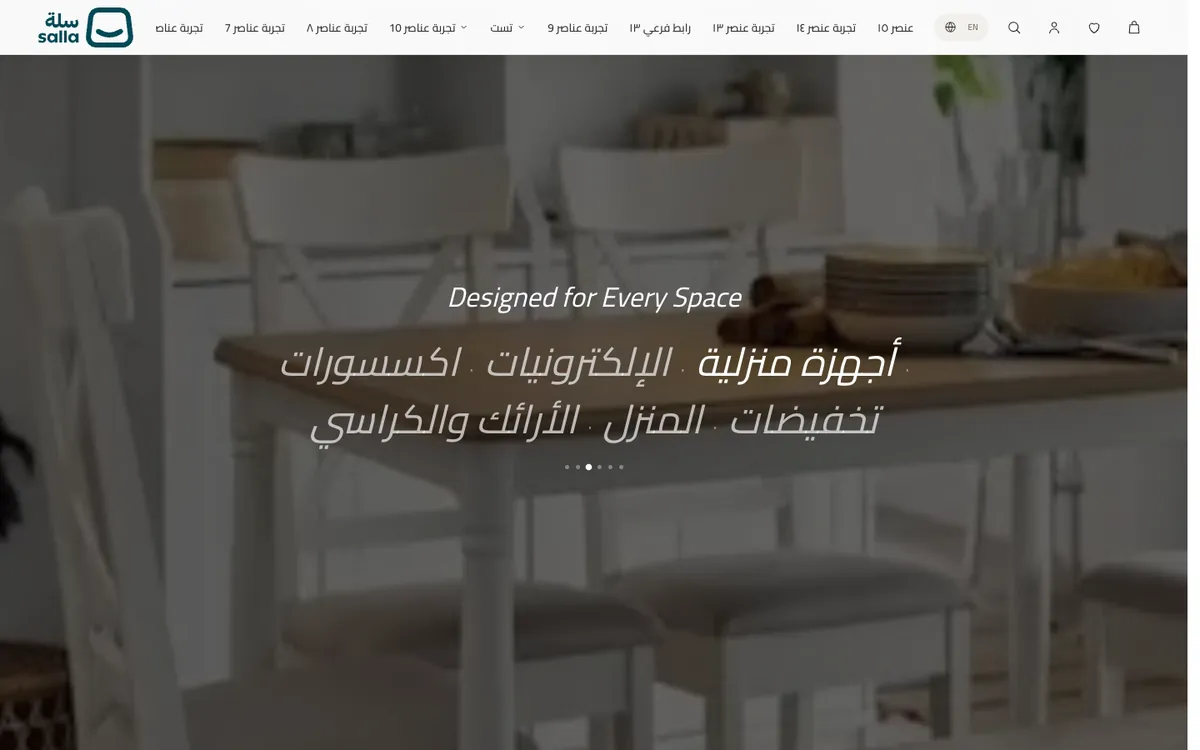
 01Hero
 02Featured collection (tabs)
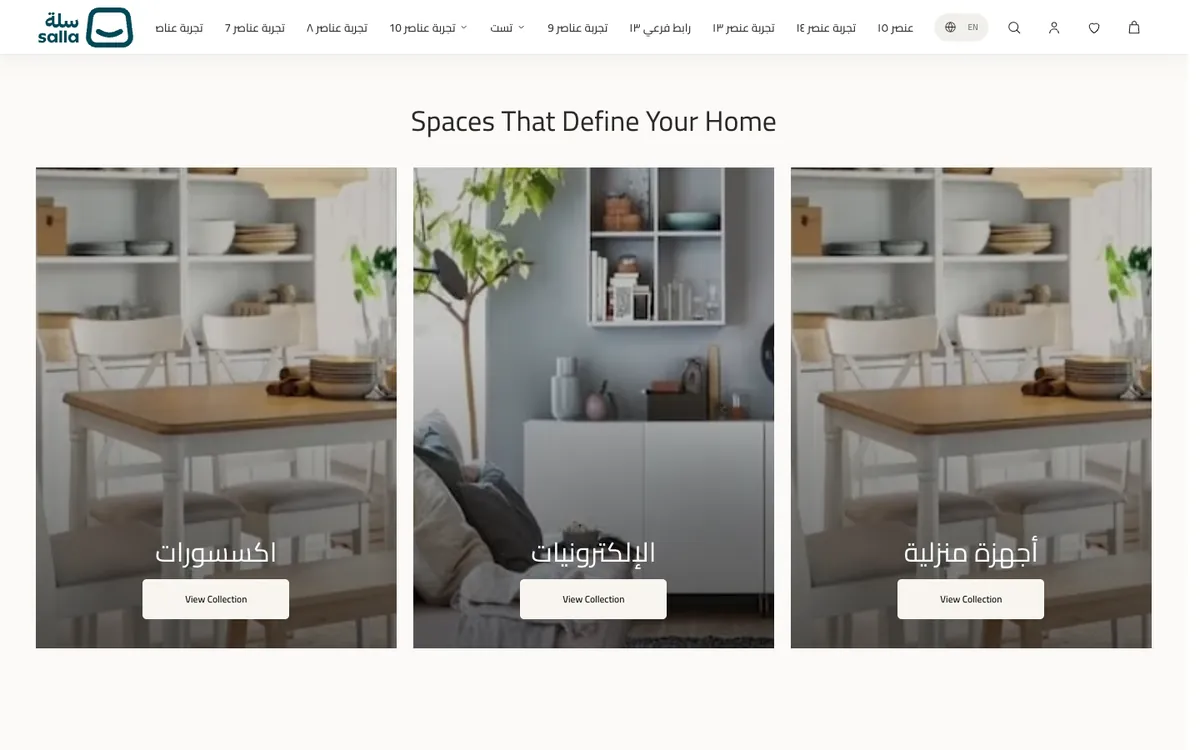 03Spaces selection
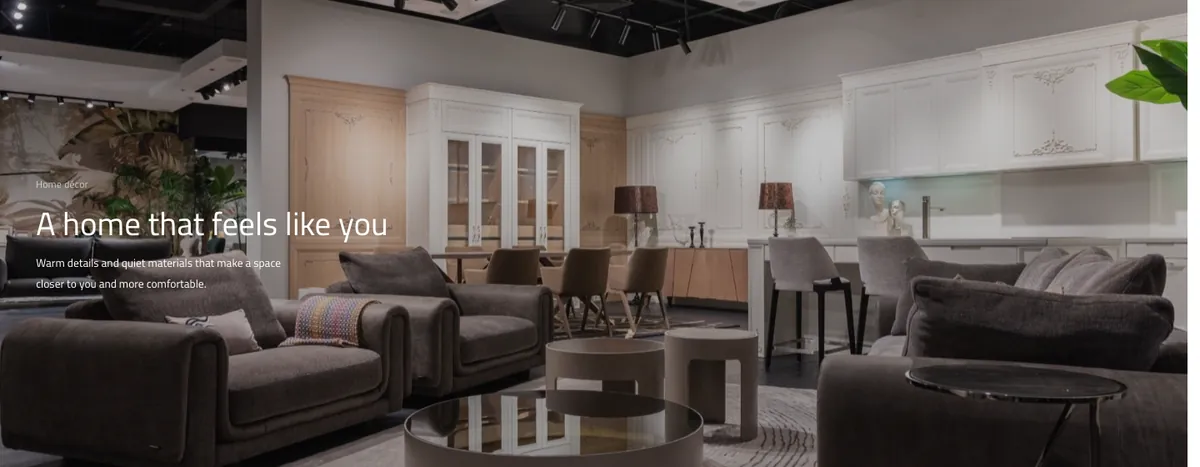 04Media story
 05Build your set (product bundle)
 06Shop by space
 07Text with image
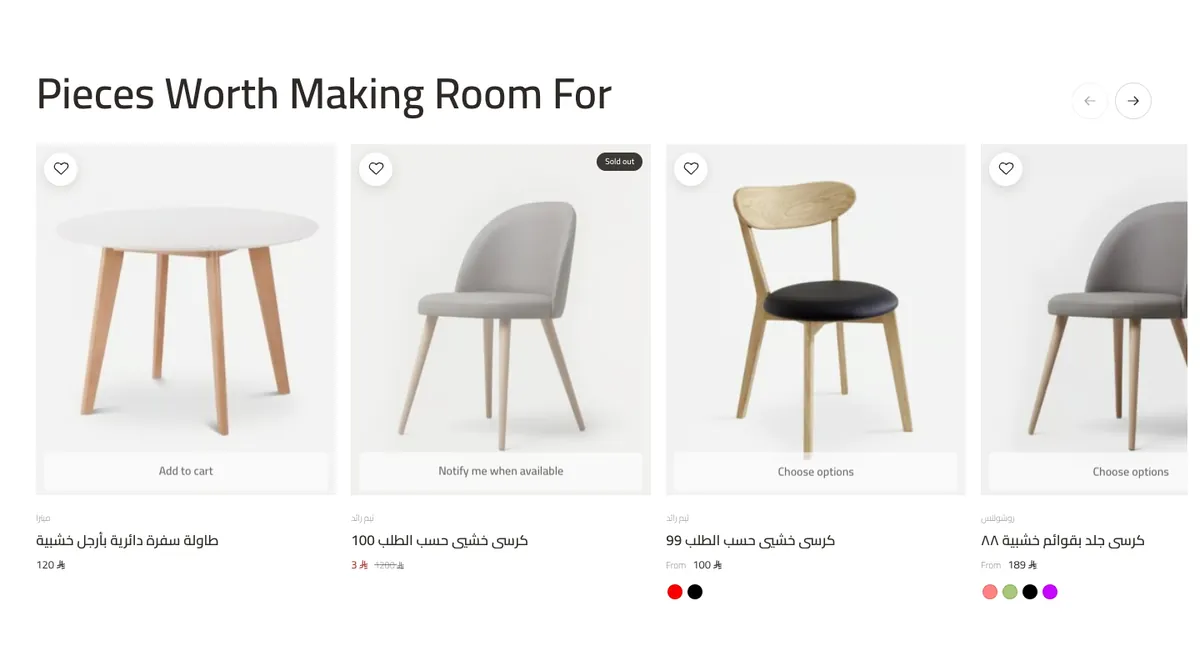 08Product carousel
 09Brand slider
 10FAQ
10FAQ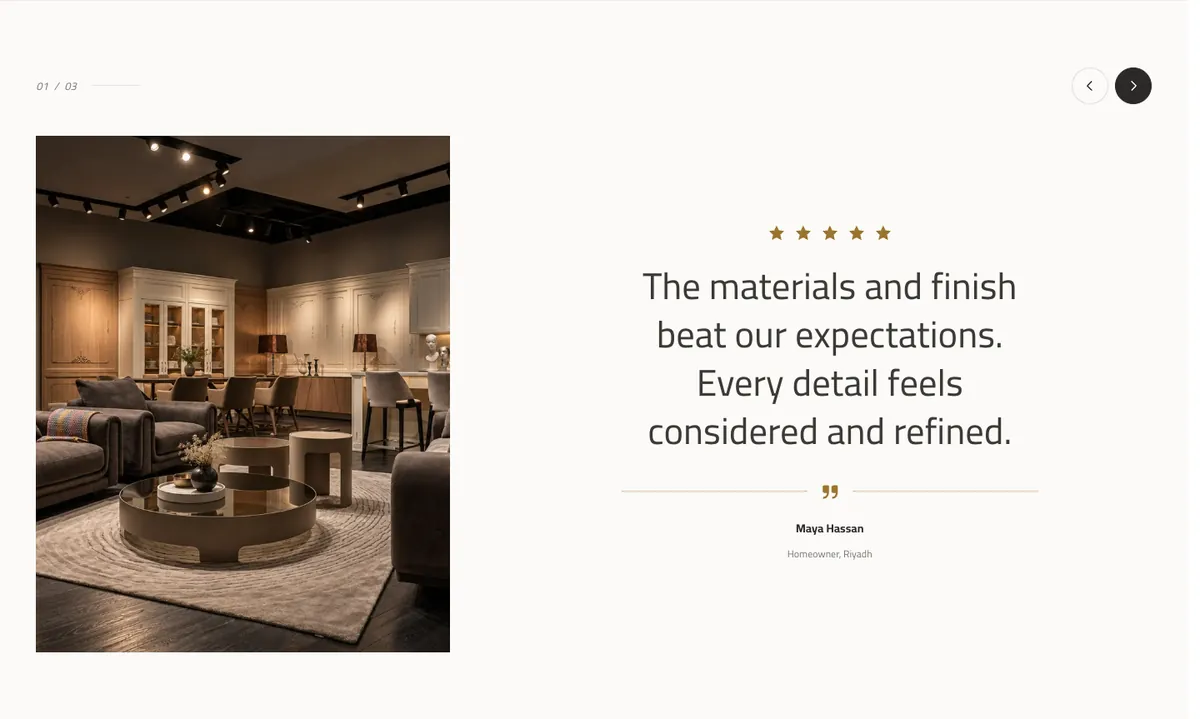 11Testimonials
 12Blog / journal
 13Social gallery
 14Reviews over an image
Hero
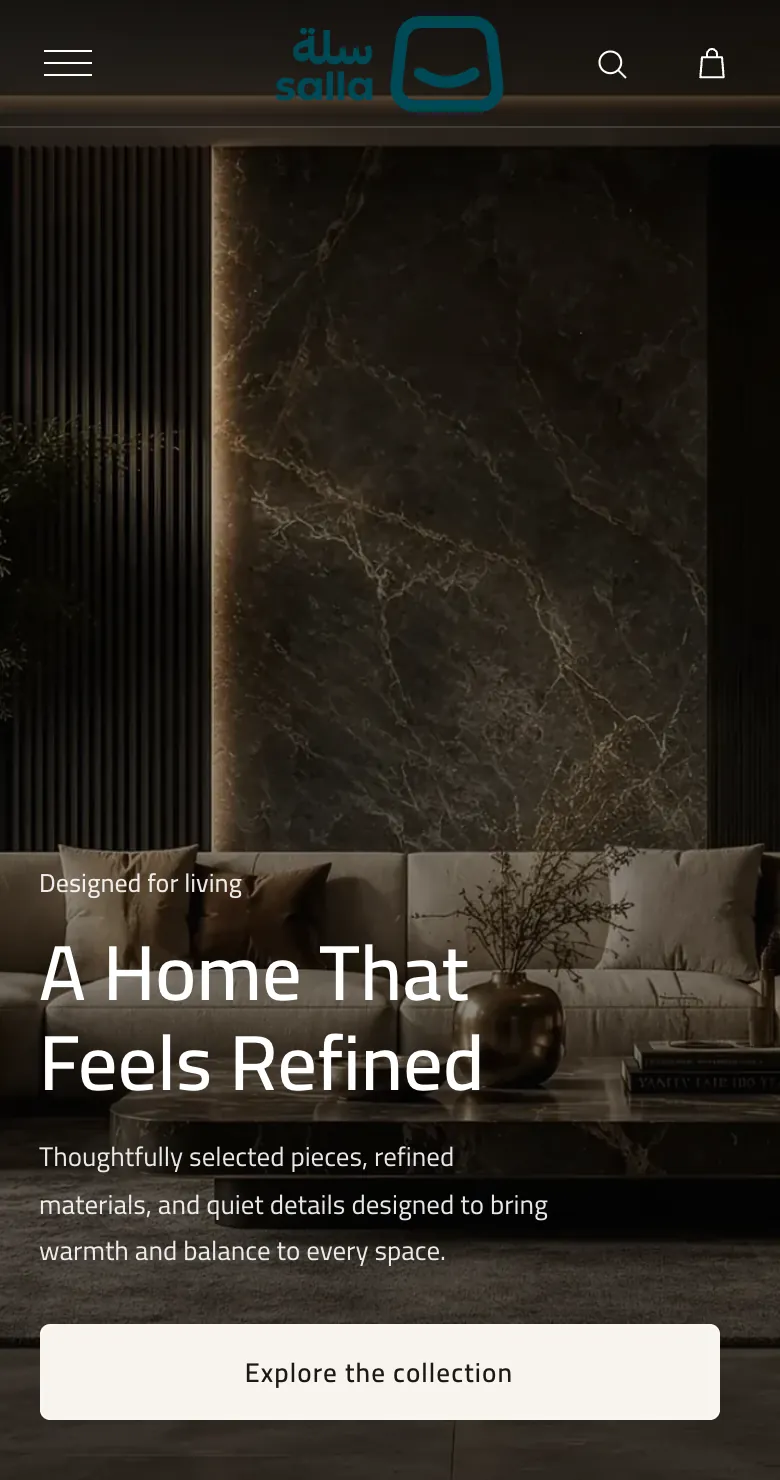
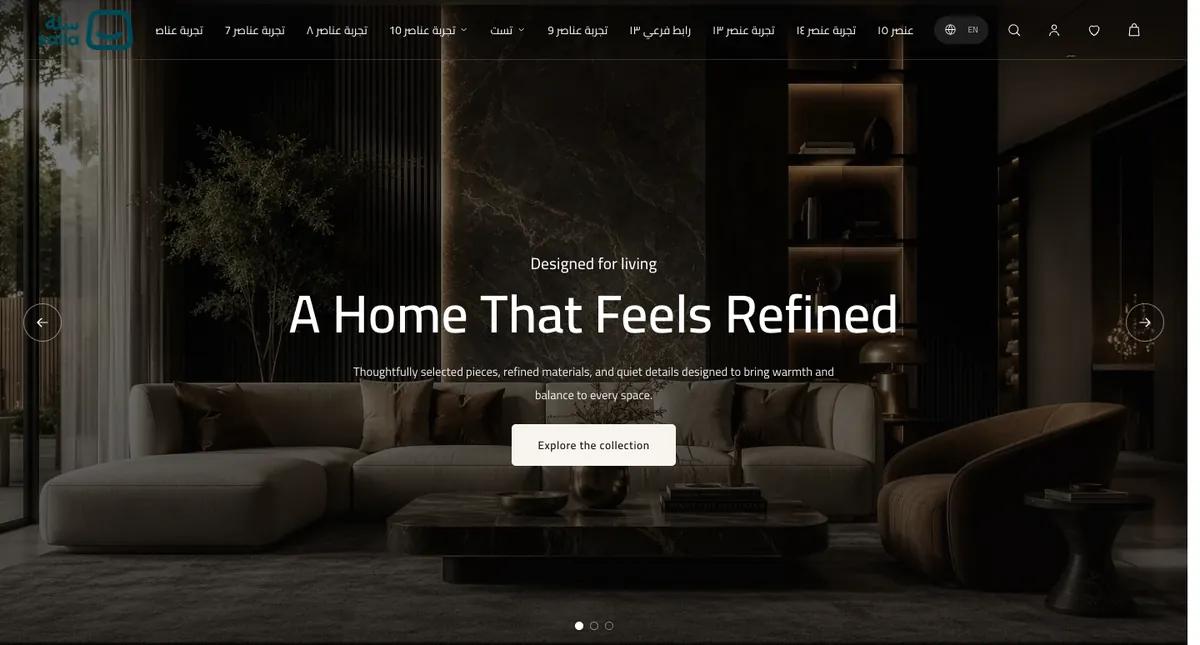
The first thing a visitor sees: a large image with a headline, supporting text and a button. It works as a single banner or as a slideshow of several banners, with an optional video.
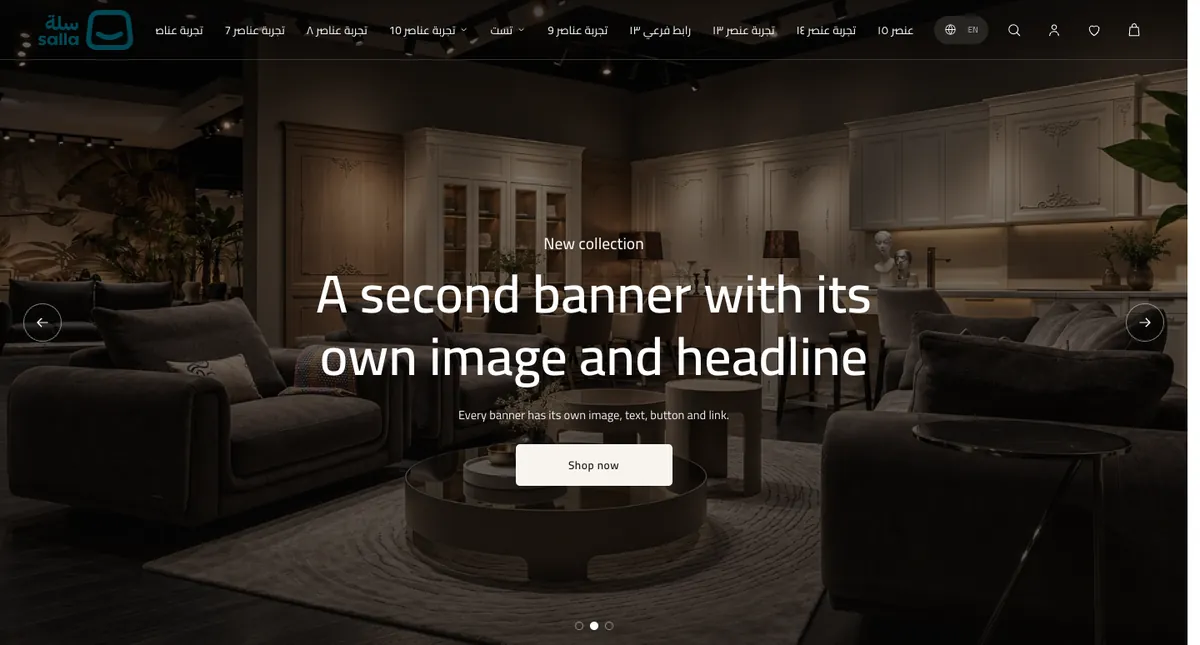
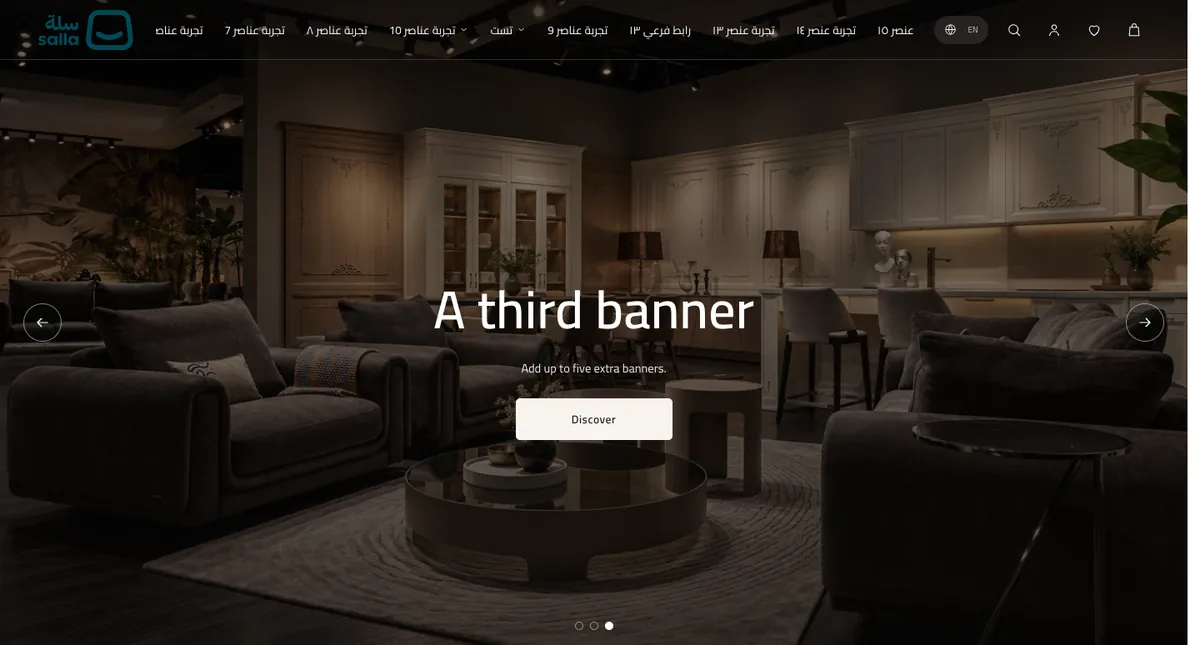
| Device | How it behaves |
|---|---|
| Desktop | A full-width image at the height you choose (compact, standard or full), with the text and button placed horizontally and vertically where you want. The header can sit transparent over the image if you enable that in the header settings. |
| Mobile | A separate (optional) mobile image, a focal point that decides which part stays visible when the image is cropped, a section height, and a full-width or automatic-width button. |
Layouts: Single banner or slideshow (up to 5 extra banners)
How to set it up
- Add the section from the section catalogue in the theme editor (it appears as "Hero").
- Write the headline, supporting text and button text, and set the button link.
- Upload the desktop image, then a mobile image if you want a different composition, and set the focal point.
- For several banners: switch "Hero mode" to "Slideshow: several banners", add the following banners (up to 5), then set arrows, dots and autoplay.
Images and proportions
- Desktop image: The bundled default is 2560×1705 px (close to 3:2). The image is cropped to fill the section, so keep the key subject near the centre.
- Mobile image: The bundled default is 850×1364 px (close to 5:8). If you do not upload a mobile image, the desktop image is used.
These proportions are taken from the theme's code and its bundled images. Images are cropped to fill the frame (cover), so keep the main subject near the centre.
Controls in the editor
Controls table37
| Control | Type / choices | Note |
|---|---|---|
| Content | ||
| Small text | Text | |
| Title | Text | |
| Supporting text | Long text | |
| Button text | Text | |
| Button link | Link (product, category, brand, page, article or external URL) | |
| Hide small text | On / off | |
| Hide supporting text | On / off | |
| Hide button | On / off | |
| Image & video | ||
| Hero image (desktop) | Image | |
| Hero image (mobile) — optional | Image | إذا تُركت فارغة تُستخدم صورة الكمبيوتر. |
| Mobile image focal point | Center · Top · Bottom · Left · Right | |
| Mobile height | Compact · Standard · Tall | |
| Video link (optional) | Link | ملف mp4 / webm مباشر، أو رابط YouTube أو Vimeo. يُعرض كخلفية صامتة متكررة وتبقى الصورة ظاهرة حتى يبدأ التشغيل. |
| Show the image instead of the video on phones | On / off | |
| Overlay strength (desktop) | None · Light · Medium · Strong | |
| Overlay strength (mobile) | Light · Medium · Strong | |
| Section height (desktop) | Compact · Standard · Full screen | |
| Several banners (slideshow) | ||
| Hero mode | Single banner (default) · Slideshow: several banners | |
| Following banners | Repeating items (up to 5): Desktop image, Mobile image (optional), Small text, Title, Supporting text, Button text, Button link | Shown when: Hero mode = Slideshow: several banners |
| Show navigation arrows | On / off | Shown when: Hero mode = Slideshow: several banners |
| Show pagination dots | On / off | Shown when: Hero mode = Slideshow: several banners |
| Autoplay | On / off | Shown when: Hero mode = Slideshow: several banners |
| Seconds per banner | Number (3–20) | Shown when: Autoplay = on |
| Text & button position | ||
| Content position — horizontal (desktop) | Start · Center · End | |
| Content position — vertical (desktop) | Top · Center · Bottom | |
| Text alignment (desktop) | Auto · Start · Center · End | |
| Content width (desktop) | Narrow · Standard · Wide | |
| Button position | Follow text · Start · Center · End | |
| Content position — vertical (mobile) | Top · Center · Bottom | |
| Content alignment (mobile) | Start · Center · End | |
| Button width (mobile) | Full width · Fit text | |
| Typography & colours | ||
| Title size | Small · Standard · Large | |
| Colours, spacing and type | Background, text and accent colours · space above and below · heading weight · body size | A colour set on the section wins over the theme-wide colour. |
| Button style | Filled · Outline · Text only | |
| Button size | Small · Standard · Large | |
| Button background | Colour | |
| Button text colour | Colour | |
Notes
- The first banner is the section's main fields and "Following banners" adds to it, so a slideshow holds at most 6 banners in total.
- If you have a video, paste its link and turn on "Show the image instead of the video on phones" to save visitors' data.
- Keep the text readable over the image by adjusting the overlay strength for desktop and mobile separately.
Featured collection (tabs)
Tabbed product collections: each tab has a name and a list of products, shown as a horizontal rail or as a grid.
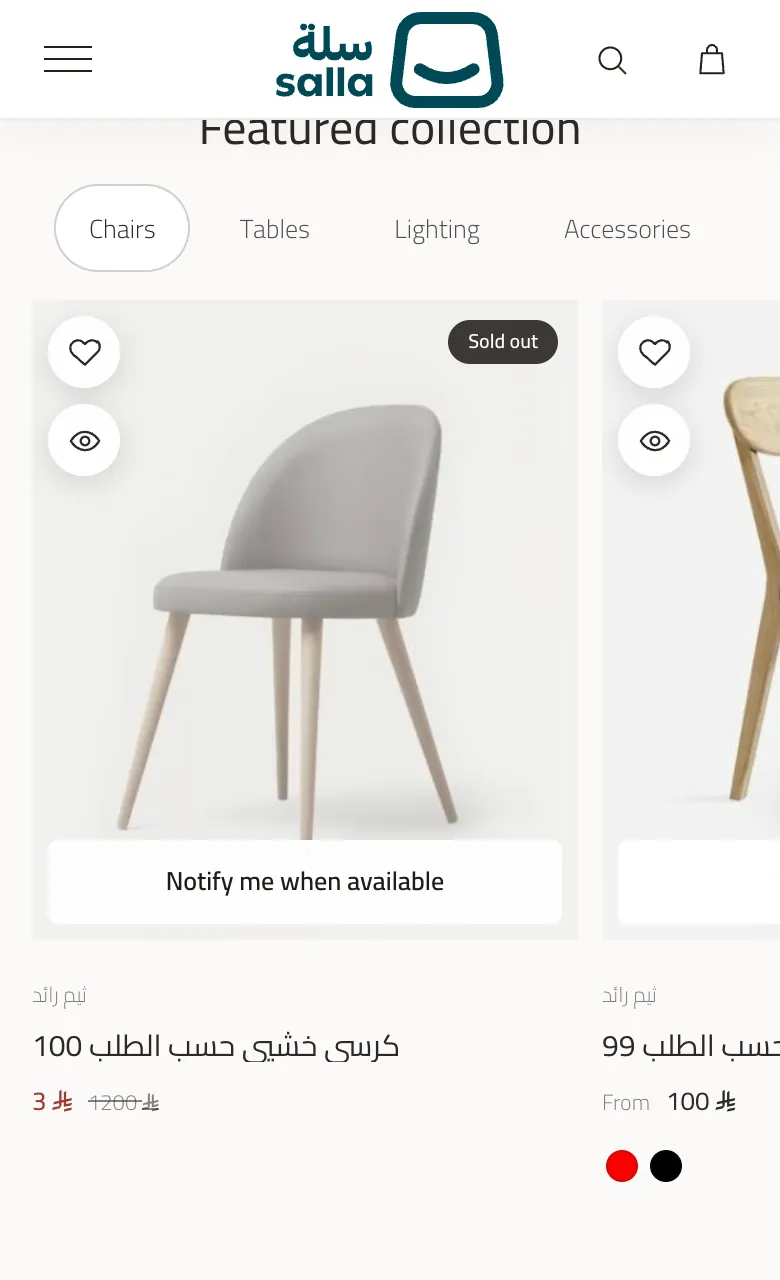
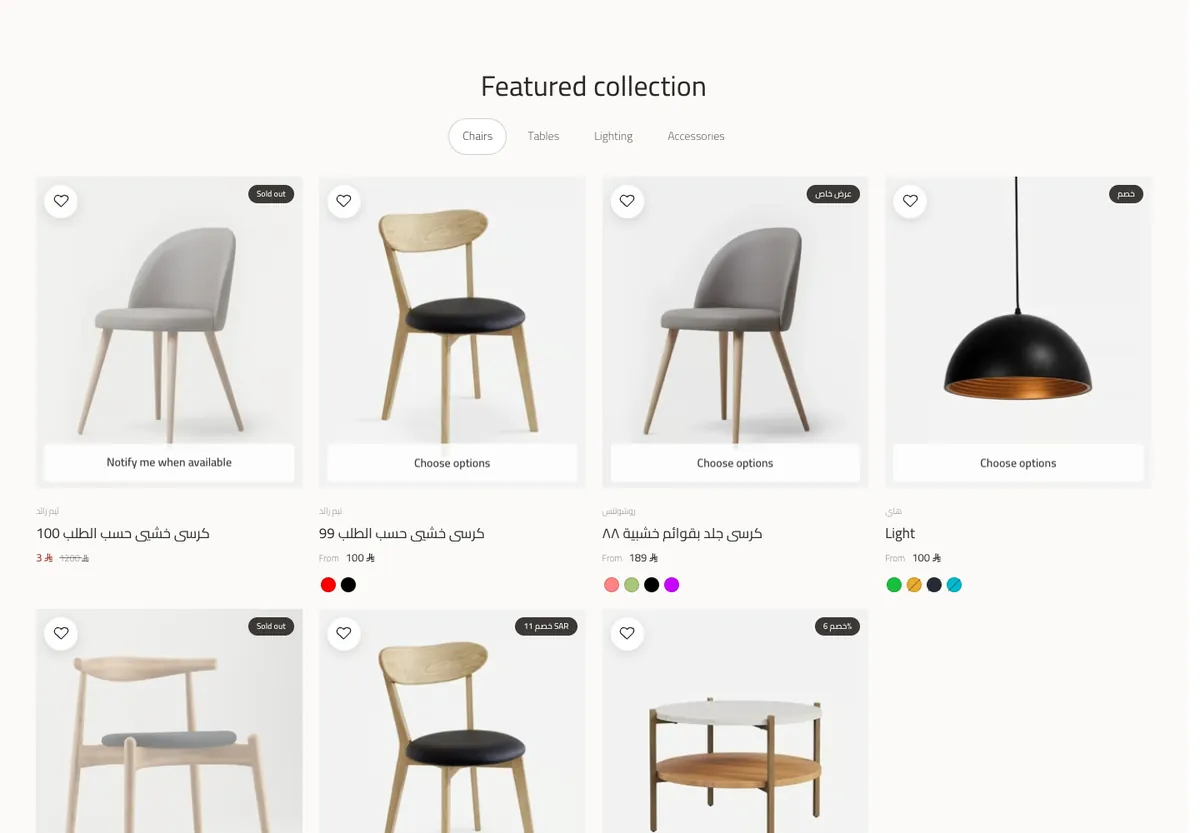
| Device | How it behaves |
|---|---|
| Desktop | 3, 4 or 5 products per view, with arrows, a counter and a progress bar that can be hidden. In Grid layout every product is shown in rows. |
| Mobile | In Rail layout visitors swipe horizontally. In Grid layout you pick one or two columns. |
Layouts: Rail or Grid
How to set it up
- Add the section, then write the heading, description and "View all" button.
- Add one tab per collection (up to 6), name it, and pick its products from your store.
- Choose Rail or Grid, then the number of columns and the gap between cards.
Images and proportions
- Product images: They come from the product images in Salla. The card follows the "Card image ratio" setting in the product settings.
These proportions are taken from the theme's code and its bundled images. Images are cropped to fill the frame (cover), so keep the main subject near the centre.
Controls in the editor
Controls table21
| Control | Type / choices | Note |
|---|---|---|
| Heading | ||
| Eyebrow | Text | |
| Title | Text | |
| Description | Long text | |
| Button text | Text | يظهر الزر عند تعبئة النص والرابط معًا. |
| Button link | Link (product, category, brand, page, article or external URL) | |
| Tabs & products | ||
| Tabs | Repeating items (up to 6): Tab name, Tab products | |
| Product rail | ||
| Products per view (desktop) | 3 · 4 · 5 | |
| Hide arrow buttons | On / off | |
| Hide counter & progress bar | On / off | |
| Layout | Swipeable rail (default) · Grid | |
| Grid columns (mobile) | 1 · 2 | Shown when: Layout = Grid |
| Gap between cards | Small · Medium · Large | Shown when: Layout = Grid |
| Colours & spacing | ||
| Colours, spacing and type | Background, text and accent colours · space above and below · heading weight · body size | A colour set on the section wins over the theme-wide colour. |
| Typography | ||
| Heading size | Small · Medium · Large · Extra large | |
| Content alignment | Start · Center · End | |
Notes
- You do not need to repeat products: every tab keeps its own list.
- Tabs only appear when you add more than one tab.
Spaces selection
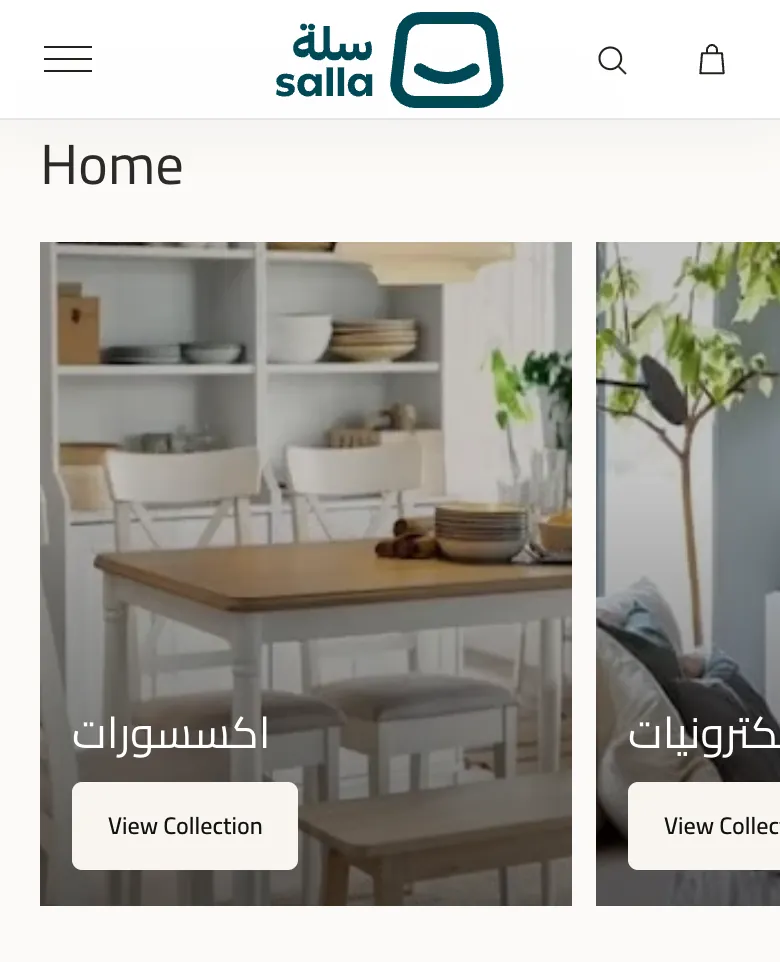
Three large image cards that introduce the rooms of the home or your main categories.
| Device | How it behaves |
|---|---|
| Desktop | Three cards side by side in the ratio you choose: 3:4, 4:5 or 1:1, with a scroll-reveal effect you can turn off. |
| Mobile | The cards switch to a 4:5 ratio. |
How to set it up
- Pick up to 3 categories from your store; the cards are filled with the category name, image and link.
- To change a card or add a manual one, use "Card overrides / manual cards" and set the title, image (and mobile image) and link.
- Set the card ratio, shade strength and title alignment.
Images and proportions
- Card image: Desktop ratios: portrait 3:4, tall 4:5, square 1:1. On mobile it is always 4:5. The image is cropped to fill the card.
These proportions are taken from the theme's code and its bundled images. Images are cropped to fill the frame (cover), so keep the main subject near the centre.
Controls in the editor
Controls table18
| Control | Type / choices | Note |
|---|---|---|
| Content | ||
| Title | Text | |
| Hide title | On / off | |
| Card button text | Text | |
| Hide card buttons | On / off | |
| Cards (up to 3) | ||
| Categories | Category picker (up to 3) | |
| Card overrides / manual cards | Repeating items (up to 3): Title, Image (desktop), Image (mobile) — optional, Image focal point, Link, Video link (optional) | |
| Look & motion | ||
| Card ratio (desktop) | 3:4 portrait · 4:5 · Square | |
| Shade strength | Light · Medium · Strong | |
| Scroll reveal effect (desktop) | On / off | |
| Title alignment (desktop) | Start · Center · End | |
| Title alignment (mobile) | Start · Center · End | |
| Colours & spacing | ||
| Colours, spacing and type | Background, text and accent colours · space above and below · heading weight · body size | A colour set on the section wins over the theme-wide colour. |
| Typography | ||
| Heading size | Small · Medium · Large · Extra large | |
Notes
- The maximum is 3 cards.
- You can hide all card buttons or rename them from a single field.
Media story
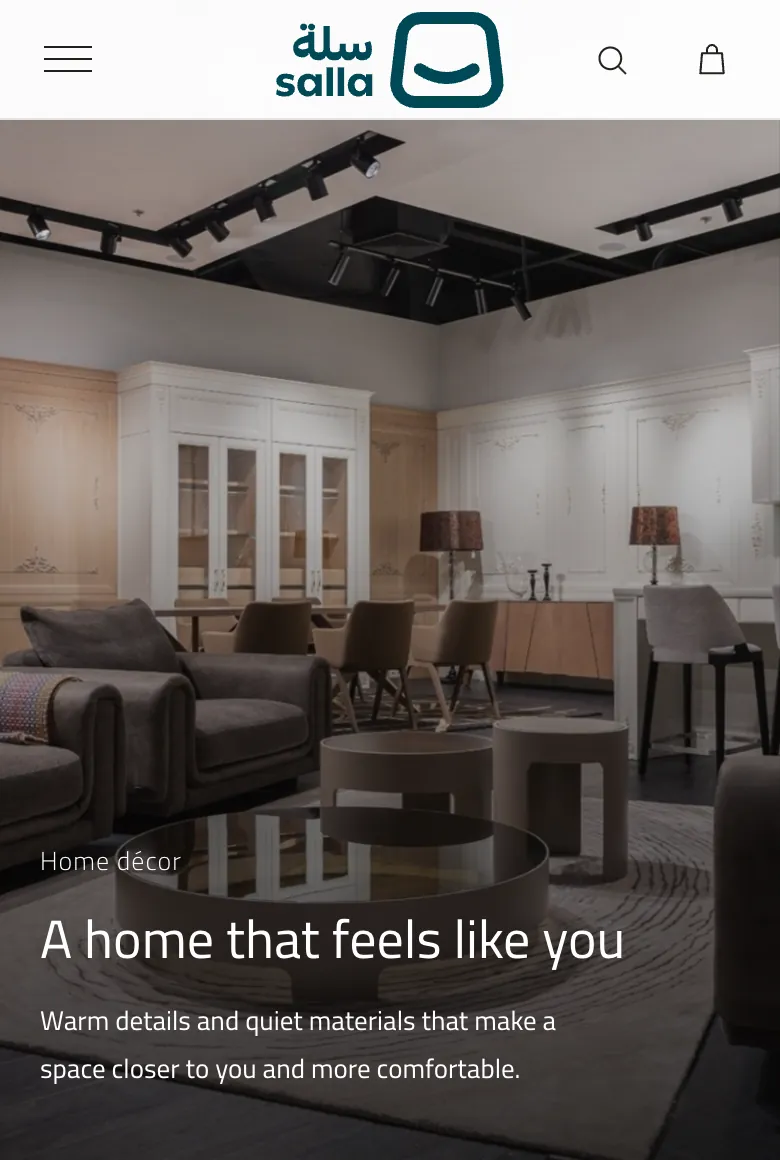
A visual story with a cover image or video, a headline, text and an optional button; it can pin in place while scrolling.
| Device | How it behaves |
|---|---|
| Desktop | Three section styles: standard, tall or pinned while scrolling, with control over text position, width, alignment and overlay strength. |
| Mobile | An optional mobile cover image, a height (compact, standard or tall), a vertical text position, and optional video playback. |
How to set it up
- Add the section and write the headline, supporting text and button.
- Upload the cover image, a mobile image if you want, or paste a video link.
- Choose the section style, text position and overlay strength.
Images and proportions
- Cover image: The bundled default is 1800×1200 px (3:2) for desktop and 900×600 px for mobile.
These proportions are taken from the theme's code and its bundled images. Images are cropped to fill the frame (cover), so keep the main subject near the centre.
Controls in the editor
Controls table28
| Control | Type / choices | Note |
|---|---|---|
| Content | ||
| Small text | Text | |
| Title | Text | |
| Supporting text | Long text | |
| Button text (optional) | Text | |
| Button link | Link (product, category, brand, page, article or external URL) | |
| Hide small text | On / off | |
| Hide supporting text | On / off | |
| Image & video | ||
| Cover image (desktop) | Image | |
| Cover image (mobile) — optional | Image | إذا تُركت فارغة تُستخدم صورة الكمبيوتر. |
| Mobile image focal point | Center · Top · Bottom · Left · Right | |
| Mobile height | Compact · Standard · Tall | |
| Video link (optional) | Link | ملف mp4 / webm مباشر، أو رابط YouTube أو Vimeo. تظهر صورة الغلاف حتى يبدأ التشغيل. |
| Play the video on phones | On / off | |
| Overlay strength (desktop) | None · Light · Medium · Strong | |
| Layout & motion | ||
| Section style (desktop) | Standard scene · Tall scene · Pinned while scrolling | |
| Text horizontal position (desktop) | Start · Center · End | |
| Text vertical position (desktop) | Top · Center · Bottom | |
| Text alignment (desktop) | Auto · Start · Center · End | |
| Text width (desktop) | Narrow · Standard · Wide | |
| Text vertical position (mobile) | Top · Bottom | |
| Colours & spacing | ||
| Colours, spacing and type | Background, text and accent colours · space above and below · heading weight · body size | A colour set on the section wins over the theme-wide colour. |
| Typography | ||
| Heading size | Small · Medium · Large · Extra large | |
Notes
- Use "Pinned" for the scroll effect, which applies to desktop only.
- Turn on video playback on phones deliberately; it is off by default.
Build your set (product bundle)
"Build your set": the visitor picks several pieces from a list you define and adds them to the cart in one go.

| Device | How it behaves |
|---|---|
| Desktop | Product cards, a selection summary and the add-to-cart button in one layout. |
| Mobile | The same logic in a vertical layout suited to phones. |
How to set it up
- Add the section and write the heading and description.
- Pick up to 6 products.
- Edit the summary title, add-piece button and cart button texts.
Images and proportions
- Product images: Shown at 4:5 and taken from the product images in Salla.
These proportions are taken from the theme's code and its bundled images. Images are cropped to fill the frame (cover), so keep the main subject near the centre.
Controls in the editor
Controls table17
| Control | Type / choices | Note |
|---|---|---|
| Heading | ||
| Eyebrow | Text | |
| Title | Text | |
| Description | Long text | |
| Hide small text | On / off | |
| Products | ||
| Products (up to 6) | Product picker (up to 6) | |
| Labels | ||
| Summary title | Text | |
| Add-piece button text | Text | |
| Add-to-cart button text | Text | |
| Colours & spacing | ||
| Colours, spacing and type | Background, text and accent colours · space above and below · heading weight · body size | A colour set on the section wins over the theme-wide colour. |
| Typography | ||
| Heading size | Small · Medium · Large · Extra large | |
| Content alignment | Start · Center · End | |
Notes
- The maximum is 6 products.
- Pieces are added through Salla's native cart, and only simple products qualify: a product with options, a bundle, a file upload or a custom form cannot be picked here.
Shop by space
Shop by space: a list of spaces (living room, bedroom…) whose image changes on scroll or when a space is picked.

| Device | How it behaves |
|---|---|
| Desktop | One large active space with progress dots; it can switch automatically while scrolling. Name size and overlay strength are adjustable. |
| Mobile | Cards at 4:5 in one or two columns (one column turns them into 4:3). |
How to set it up
- Pick up to 6 categories, or add manual spaces with a title, image and link.
- Set the name size, overlay strength, progress dots and switch-on-scroll.
- Choose the number of mobile columns.
Images and proportions
- Space image: The item is 4:5 on mobile with two columns and 4:3 with one column. The image is cropped to fill the frame.
These proportions are taken from the theme's code and its bundled images. Images are cropped to fill the frame (cover), so keep the main subject near the centre.
Controls in the editor
Controls table16
| Control | Type / choices | Note |
|---|---|---|
| Content | ||
| Title | Text | |
| Hide title | On / off | |
| Spaces (up to 6) | ||
| Categories | Category picker (up to 6) | |
| Space overrides / manual spaces | Repeating items (up to 6): Name, Image (desktop), Image (mobile) — optional, Image focal point, Link, Video link (optional) | |
| Look & motion | ||
| Space name size (desktop) | Small · Medium · Large | |
| Overlay strength (desktop) | Light · Medium · Strong | |
| Show progress dots (desktop) | On / off | |
| Switch space while scrolling (desktop) | On / off | |
| Columns (mobile) | One · Two | |
| Colours & spacing | ||
| Colours, spacing and type | Background, text and accent colours · space above and below · heading weight · body size | A colour set on the section wins over the theme-wide colour. |
| Typography | ||
| Heading size | Small · Medium · Large · Extra large | |
Notes
- The maximum is 6 spaces.
- Turn off "Switch space while scrolling" if you want visitors to be fully in control.
Text with image
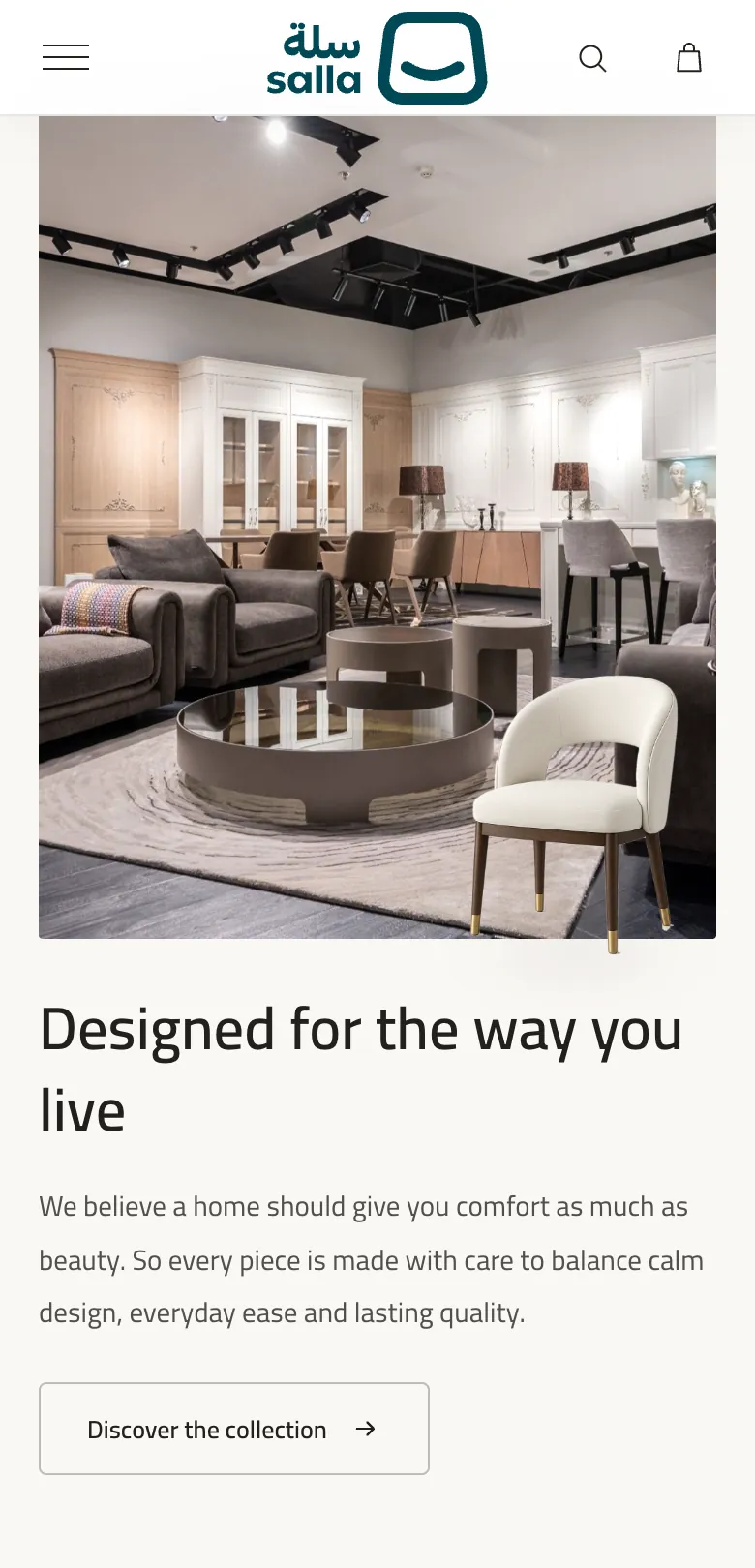
Text beside an image, with an optional floating transparent PNG over the main image, or a video.
| Device | How it behaves |
|---|---|
| Desktop | The image on the side you choose, at a compact, standard or tall height, with the text at a vertical position you set. |
| Mobile | A separate mobile image at 4:5, and you can place the image before or after the text. |
How to set it up
- Add the section and write the title, text and button.
- Upload the main image (and a mobile image), and a floating PNG if you like.
- Choose the image side, its height and its order on mobile.
Images and proportions
- Main image: The bundled default is 1800×1200 px (3:2) for desktop and 900×600 px for mobile. It is cropped to fill the frame, and 4:5 on mobile.
- Floating image: A PNG with a transparent background. The bundled default is 684×900 px.
These proportions are taken from the theme's code and its bundled images. Images are cropped to fill the frame (cover), so keep the main subject near the centre.
Controls in the editor
Controls table26
| Control | Type / choices | Note |
|---|---|---|
| Content | ||
| Title | Text | |
| Text | Long text | |
| Button text | Text | |
| Button link | Link (product, category, brand, page, article or external URL) | |
| Hide text | On / off | |
| Hide button | On / off | |
| Image & video | ||
| Main image (desktop) | Image | |
| Main image (mobile) — optional | Image | إذا تُركت فارغة تُستخدم صورة الكمبيوتر. |
| Mobile image focal point | Center · Top · Bottom · Left · Right | |
| Video link (optional) | Link | ملف mp4 / webm مباشر، أو رابط YouTube أو Vimeo. تظهر الصورة حتى يبدأ التشغيل. |
| Show the image instead of the video on phones | On / off | |
| Floating image (transparent PNG) | Image | |
| Hide floating image | On / off | |
| Layout | ||
| Image side (desktop) | End · Start | |
| Image height (desktop) | Compact · Standard · Tall | |
| Text vertical position (desktop) | Top · Center · Bottom | |
| Image order on mobile | Image first · Text first | |
| Colours & spacing | ||
| Colours, spacing and type | Background, text and accent colours · space above and below · heading weight · body size | A colour set on the section wins over the theme-wide colour. |
| Typography | ||
| Heading size | Small · Medium · Large · Extra large | |
| Content alignment | Start · Center · End | |
Notes
- Hide the floating image with one switch instead of deleting it.
- For video on phones use "Show the image instead of the video on phones".
Product carousel
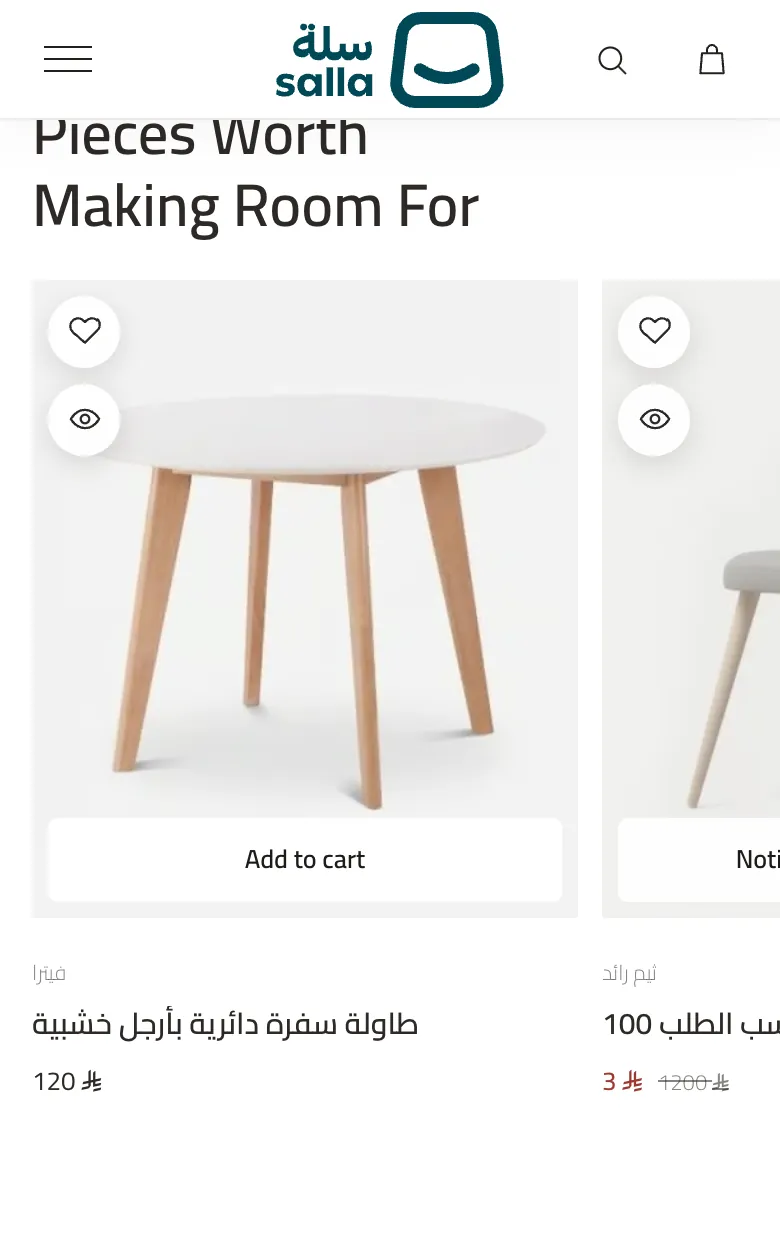
A single product strip (up to 20 products), as a horizontal rail or as a grid.
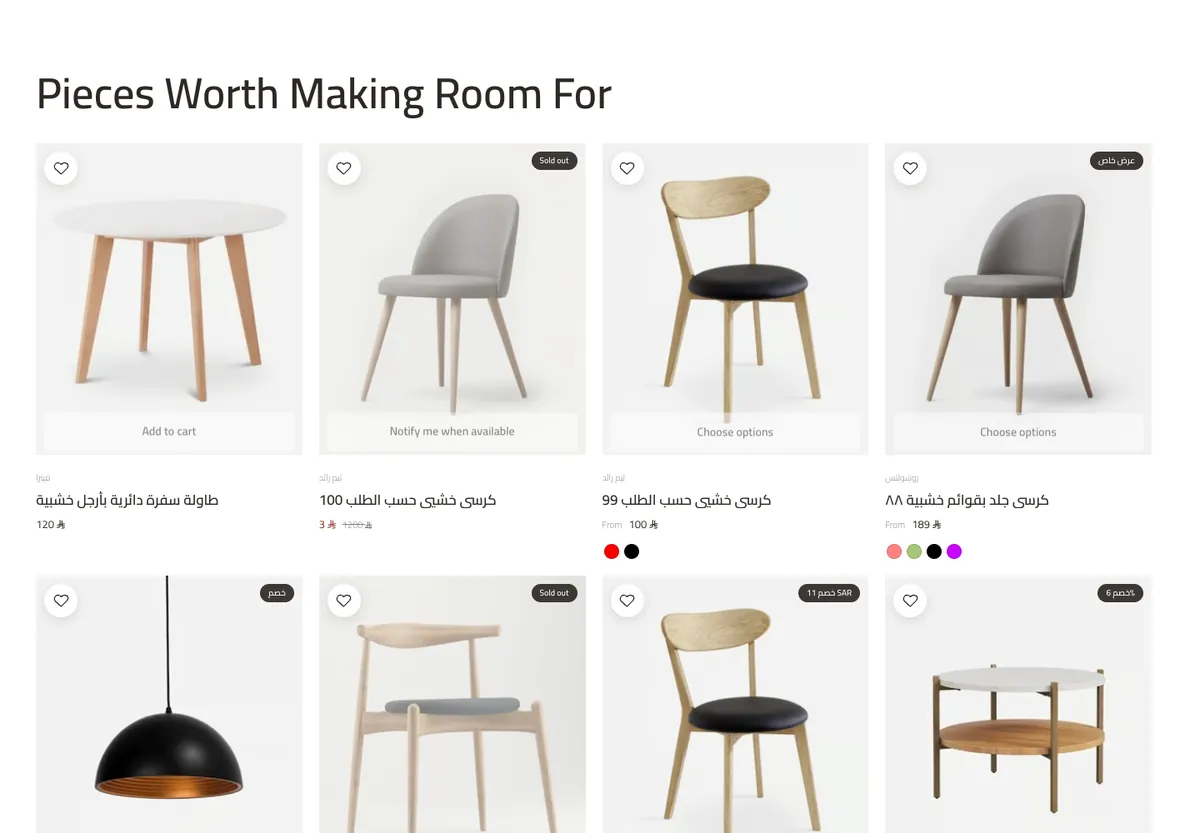
| Device | How it behaves |
|---|---|
| Desktop | Small, medium or large cards, with arrows, and in Rail layout dots and autoplay. |
| Mobile | In Grid layout you choose one or two columns. In Rail layout visitors swipe horizontally. |
Layouts: Rail or Grid
How to set it up
- Add the section and write the heading, description and button.
- Pick the products (up to 20).
- Choose Rail or Grid, then set columns and gap, or dots and autoplay for the rail.
Images and proportions
- Product images: From the product images in Salla, following the card ratio set in the product settings.
These proportions are taken from the theme's code and its bundled images. Images are cropped to fill the frame (cover), so keep the main subject near the centre.
Controls in the editor
Controls table24
| Control | Type / choices | Note |
|---|---|---|
| Content | ||
| Eyebrow | Text | |
| Title | Text | |
| Description | Long text | |
| Button text | Text | يظهر الزر عند تعبئة النص والرابط معًا. |
| Button link | Link (product, category, brand, page, article or external URL) | |
| Products | ||
| Products | Product picker (up to 20) | |
| Carousel | ||
| Card width (desktop) | Small · Medium · Large | |
| Hide arrow buttons | On / off | |
| Layout | Swipeable rail (default) · Grid | |
| Columns (desktop) | 2 · 3 · 4 · 5 | Shown when: Layout = Grid |
| Columns (mobile) | 1 · 2 | Shown when: Layout = Grid |
| Gap between cards | Small · Medium · Large | Shown when: Layout = Grid |
| Show pagination dots | On / off | Shown when: Layout = Swipeable rail (default) |
| Autoplay | On / off | Shown when: Layout = Swipeable rail (default) |
| Seconds per move | Number (3–20) | Shown when: Autoplay = on |
| Colours & spacing | ||
| Colours, spacing and type | Background, text and accent colours · space above and below · heading weight · body size | A colour set on the section wins over the theme-wide colour. |
| Typography | ||
| Heading size | Small · Medium · Large · Extra large | |
| Content alignment | Start · Center · End | |
Notes
- Dots and autoplay appear only in Rail layout.
- Columns and gap appear only in Grid layout.
Brand slider
A strip of brand logos, or a moving text ticker with a brand name and a short tagline.
| Device | How it behaves |
|---|---|
| Desktop | Small, medium or large logos, greyscale turning to colour on hover, moving at a speed you choose. |
| Mobile | The same strip, adapting to the screen width. |
How to set it up
- Pick brands from your store, or add manual logos.
- Write the brand name and tagline for the text ticker if you want it.
- Set the logo size, greyscale, animation, speed and the top and bottom lines.
Images and proportions
- Logos: Pick your store's brands (up to 24) or upload manual logos with a name, image and link.
These proportions are taken from the theme's code and its bundled images. Images are cropped to fill the frame (cover), so keep the main subject near the centre.
Controls in the editor
Controls table15
| Control | Type / choices | Note |
|---|---|---|
| Brands | ||
| Brands | Brand picker (up to 24) | |
| Manual logos | Repeating items (up to 24): Name, Logo, Link (optional) | |
| Text ticker | ||
| Brand name | Text | اتركه فارغًا لاستخدام اسم المتجر. يظهر فقط عند عدم وجود ماركات أو شعارات. |
| Tagline | Text | يظهر فقط في الشريط النصي (عند عدم وجود ماركات أو شعارات). |
| Hide tagline | On / off | |
| Look & motion | ||
| Logo size | Small · Medium · Large | |
| Show brand names next to logos | On / off | |
| Grayscale logos (colour on hover) | On / off | |
| Animate the strip | On / off | |
| Speed | Slow · Normal · Fast | |
| Show top & bottom lines | On / off | |
| Colours & spacing | ||
| Colours, spacing and type | Background, text and accent colours · space above and below · heading weight · body size | A colour set on the section wins over the theme-wide colour. |
Notes
- Turn off "Animate the strip" for a static strip.
- PNG logos with a transparent background give the best result.
FAQ
Frequently asked questions with collapsible answers, beside an image or an optional video.
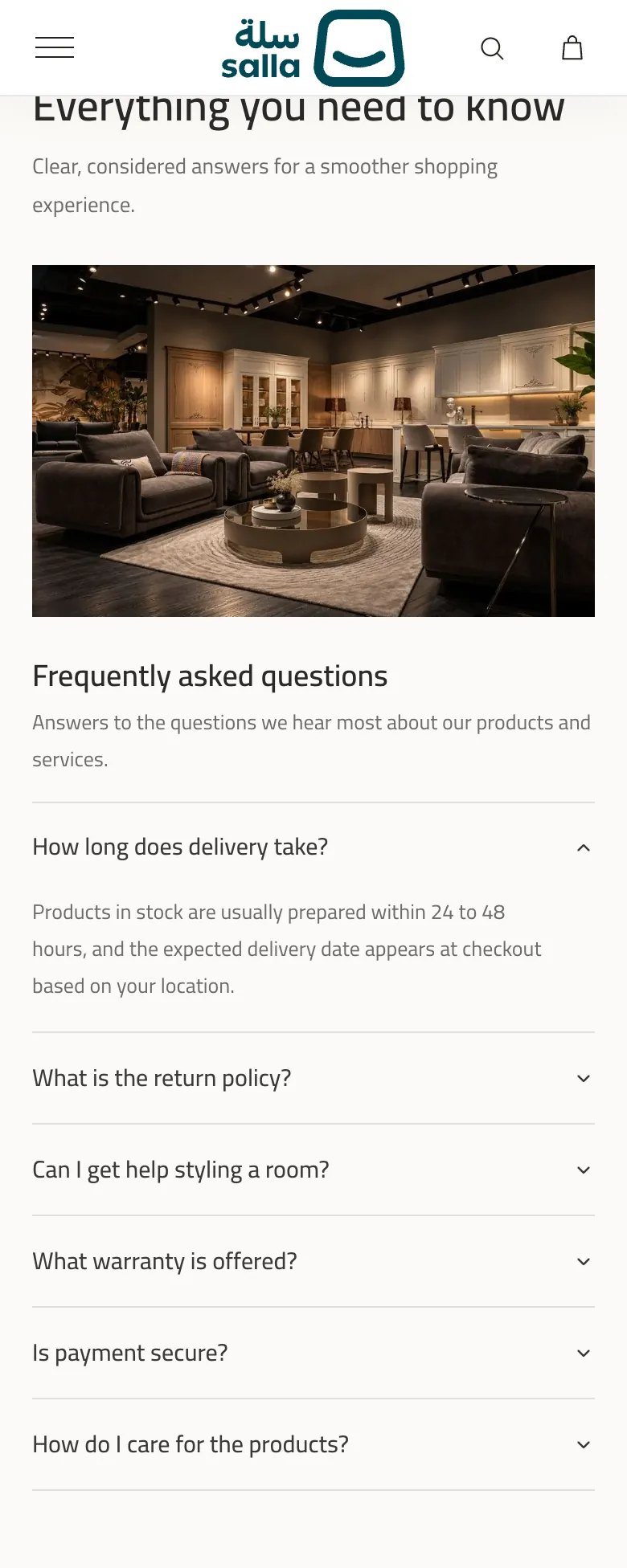
| Device | How it behaves |
|---|---|
| Desktop | An image on the side you choose and a list of questions; the list heading can stay pinned while scrolling. |
| Mobile | The image moves to a 16:10 frame with the list below it. |
How to set it up
- Add the section and write its title and description.
- Add the questions (up to 20), each with a question and an answer.
- Choose the open behaviour (one question or several together) and whether the first opens on load.
Images and proportions
- Section image: The bundled default is 1400×934 px for desktop and 900×599 px for mobile. On mobile it is 16:10.
These proportions are taken from the theme's code and its bundled images. Images are cropped to fill the frame (cover), so keep the main subject near the centre.
Controls in the editor
Controls table25
| Control | Type / choices | Note |
|---|---|---|
| Section heading | ||
| Title | Text | |
| Description | Long text | |
| Hide title & description | On / off | |
| Heading alignment (desktop) | Center · Start | |
| Questions | ||
| Questions heading | Text | |
| Questions intro | Long text | |
| Questions | Repeating items (up to 20): Question, Answer | |
| Open behaviour | One open at a time · Several can stay open | |
| Open the first question on load | On / off | |
| Image & video | ||
| Show image | On / off | |
| Section image (desktop) | Image | |
| Section image (mobile) — optional | Image | إذا تُركت فارغة تُستخدم صورة الكمبيوتر. |
| Mobile image focal point | Center · Top · Bottom · Left · Right | |
| Video link (optional) | Link | ملف mp4 / webm مباشر، أو رابط YouTube أو Vimeo. يُعرض كخلفية صامتة وتبقى الصورة ظاهرة حتى يبدأ التشغيل. |
| Show the image instead of the video on phones | On / off | |
| Image position (desktop) | Start side (default) · End side | |
| Keep the list heading sticky while scrolling (desktop) | On / off | |
| Colours & spacing | ||
| Colours, spacing and type | Background, text and accent colours · space above and below · heading weight · body size | A colour set on the section wins over the theme-wide colour. |
| Typography | ||
| Heading size | Small · Medium · Large · Extra large | |
Notes
- Hide the image entirely by turning off "Show image".
- Write the questions in your customers' language; the text is saved per language.
Testimonials
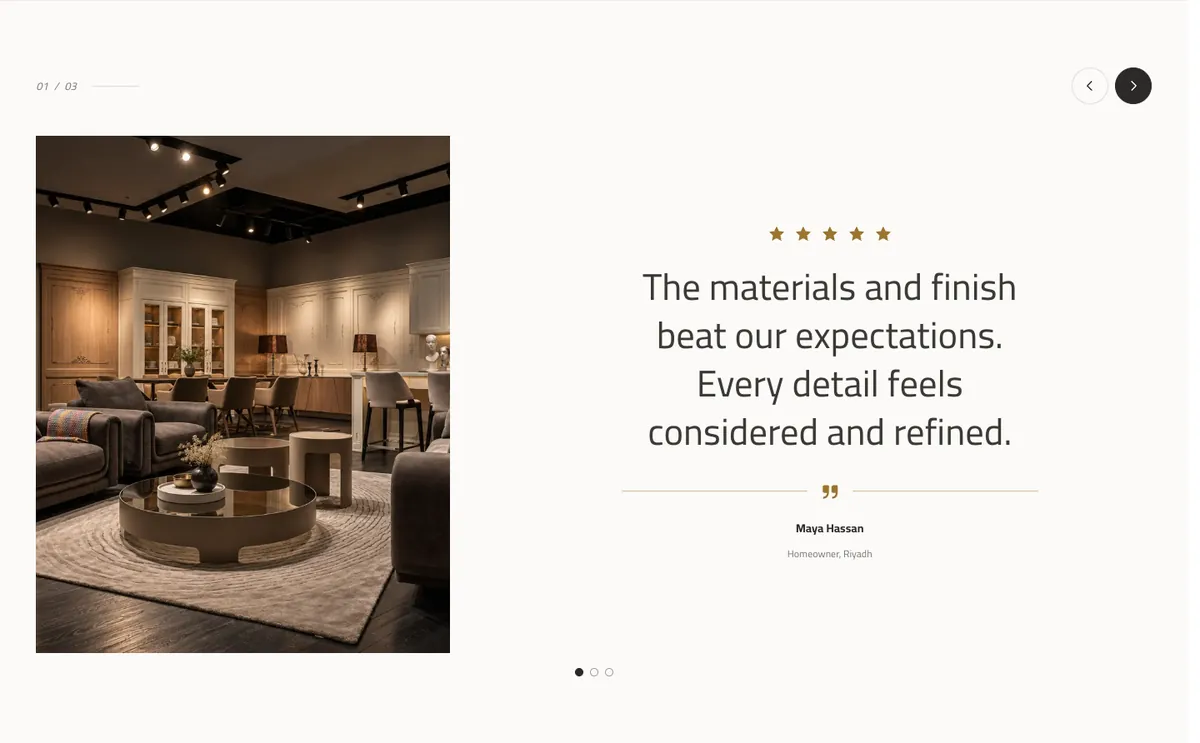
Customer testimonials as a large quote with a photo and a star rating, navigated with buttons, dots or automatically.
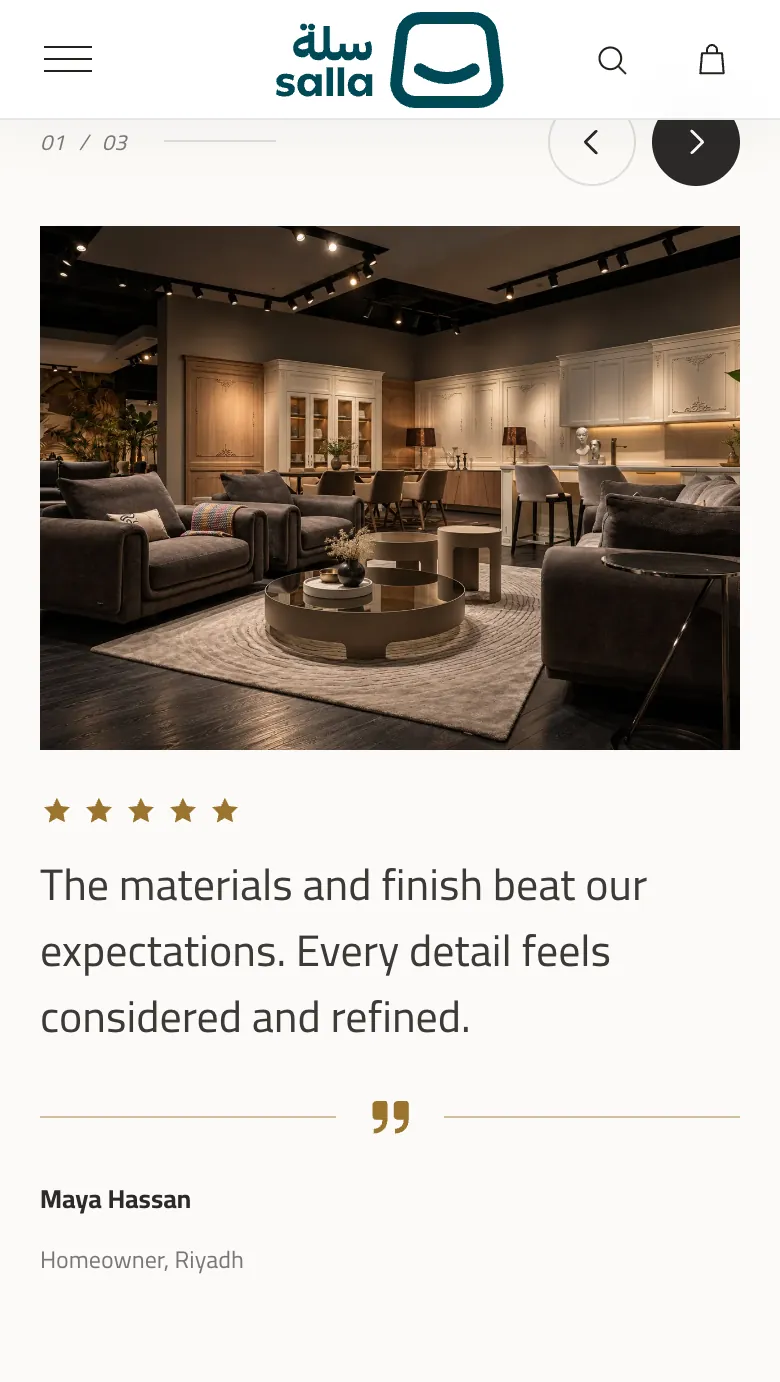
| Device | How it behaves |
|---|---|
| Desktop | A 4:5, 1:1 or 4:3 image on the side you choose, with a counter (01 / 03), arrows and dots. |
| Mobile | The image moves to a wider frame above the quote. |
How to set it up
- Add the section, and write a heading if you want one.
- Add the testimonials (up to 12): quote, name, role, rating and image.
- Choose what shows: stars, counter, arrows, dots, and autoplay with its duration.
Images and proportions
- Customer photo: Ratios: portrait 4:5, square 1:1, landscape 4:3. On narrow screens the frame becomes wider.
These proportions are taken from the theme's code and its bundled images. Images are cropped to fill the frame (cover), so keep the main subject near the centre.
Controls in the editor
Controls table21
| Control | Type / choices | Note |
|---|---|---|
| Section heading (optional) | ||
| Eyebrow | Text | |
| Title | Text | |
| Description | Long text | |
| Testimonials | ||
| Testimonials | Repeating items (up to 12): Quote, Customer name, Role or city, Rating, Image (desktop), Image (mobile) — optional | |
| Display & controls | ||
| Show star rating | On / off | |
| Show counter (01 / 03) | On / off | |
| Show navigation arrows | On / off | |
| Show pagination dots | On / off | |
| Image ratio (desktop) | Portrait 4:5 · Square · Landscape 4:3 | |
| Image position (desktop) | Start side (default) · End side | |
| Autoplay | On / off | |
| Seconds per testimonial | Number (3–20) | Shown when: Autoplay = on |
| Colours & spacing | ||
| Colours, spacing and type | Background, text and accent colours · space above and below · heading weight · body size | A colour set on the section wins over the theme-wide colour. |
| Typography | ||
| Heading size | Small · Medium · Large · Extra large | |
| Content alignment (desktop) | Start · Center · End | |
Notes
- These testimonials are typed by hand and are not pulled from store reviews. For real store reviews use "Reviews over an image".
- Use real testimonials, with their authors' permission.
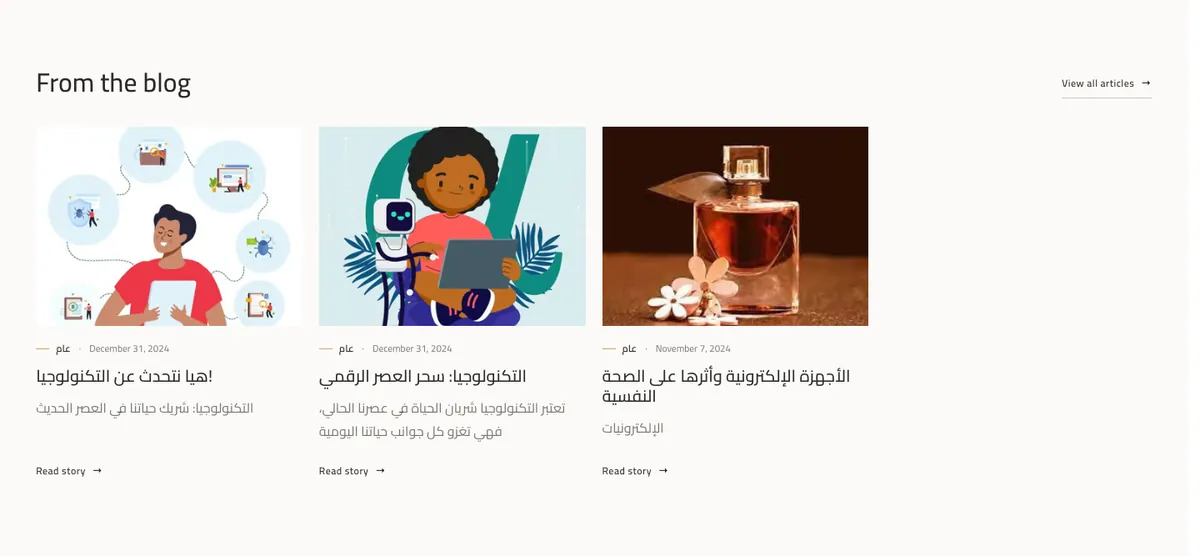
Blog / journal
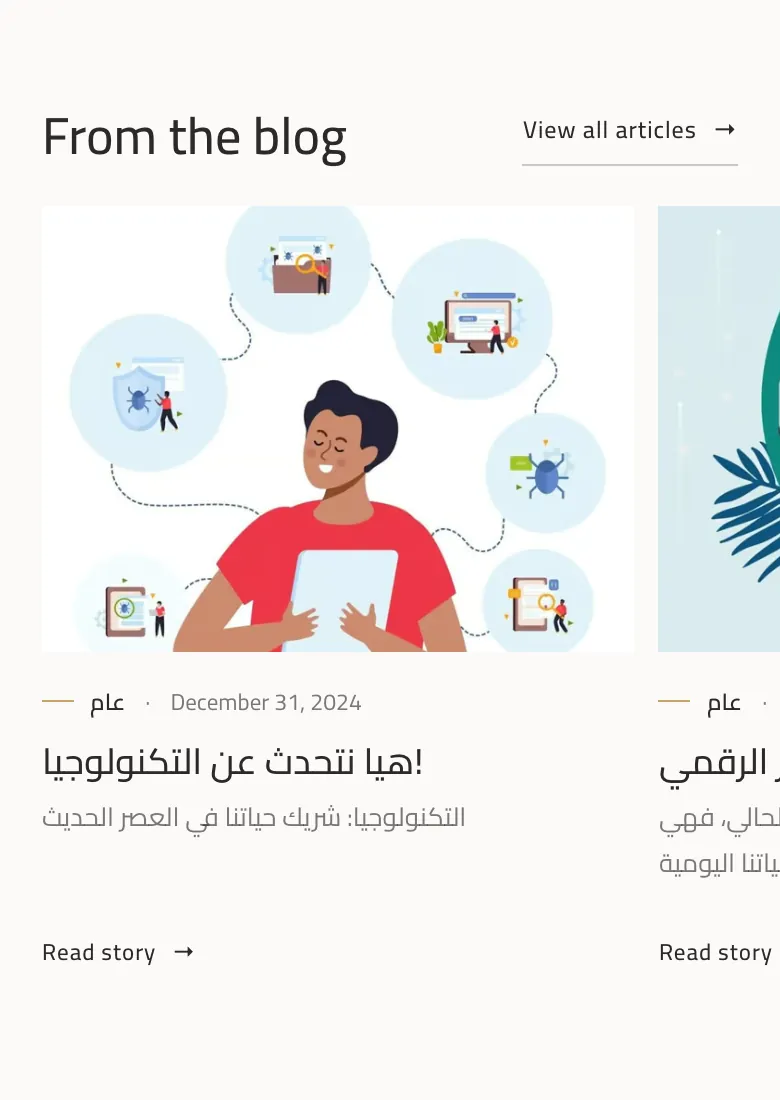
The latest articles from the store blog (up to 8) as cards with an image, category, date and excerpt.

| Device | How it behaves |
|---|---|
| Desktop | A grid with 2, 3 or 4 columns, or a slider with arrows, dots and autoplay. Image ratio 4:3, 16:10, 1:1 or 4:5. |
| Mobile | A horizontal rail or a single column; in the slider you choose 1, 1.2 or 2 visible cards. |
Layouts: Grid or Slider
How to set it up
- Pick the articles from the store blog (up to 8).
- Write the heading, description, "Read article" text and the "View all" link.
- Choose Grid or Slider, then the columns and what shows on the card.
Images and proportions
- Article image: Taken from the article image in Salla. Ratios: landscape 4:3, wide 16:10, square 1:1, portrait 4:5.
These proportions are taken from the theme's code and its bundled images. Images are cropped to fill the frame (cover), so keep the main subject near the centre.
Controls in the editor
Controls table34
| Control | Type / choices | Note |
|---|---|---|
| Content | ||
| Eyebrow | Text | |
| Title | Text | |
| Description | Long text | |
| Articles | Article picker (up to 8) | |
| Read-more label | Text | |
| "View all" label | Text | |
| "View all" link | Link (product, category, brand, page, article or external URL) | |
| Visible elements | ||
| Hide article image | On / off | |
| Hide category | On / off | |
| Hide date | On / off | |
| Hide excerpt | On / off | |
| Hide read-more link | On / off | |
| Hide "View all" link | On / off | |
| Layout | ||
| Columns (desktop) | 2 · 3 · 4 | |
| Image ratio | Landscape 4:3 · Wide 16:10 · Square 1:1 · Portrait 4:5 | |
| Layout | Grid (default) · Slider | |
| Cards per view (mobile) | 1 · 1.2 · 2 | Shown when: Layout = Slider |
| Gap between cards | Small · Medium · Large | Shown when: Layout = Slider |
| Show navigation arrows | On / off | Shown when: Layout = Slider |
| Show pagination dots | On / off | Shown when: Layout = Slider |
| Autoplay | On / off | Shown when: Layout = Slider |
| Seconds per move | Number (3–20) | Shown when: Autoplay = on |
| Mobile layout | Swipeable rail · Stacked cards | |
| Image focal point | Center · Top · Bottom · Left · Right | |
| Zoom image on hover | On / off | |
| Colours & spacing | ||
| Colours, spacing and type | Background, text and accent colours · space above and below · heading weight · body size | A colour set on the section wins over the theme-wide colour. |
| Typography | ||
| Heading size | Small · Medium · Large · Extra large | |
| Content alignment | Start · Center · End | |
Notes
- Articles come from Salla's blog, so publish articles there first.
- Hide the category, date or excerpt from the "Visible elements" options.
Social gallery
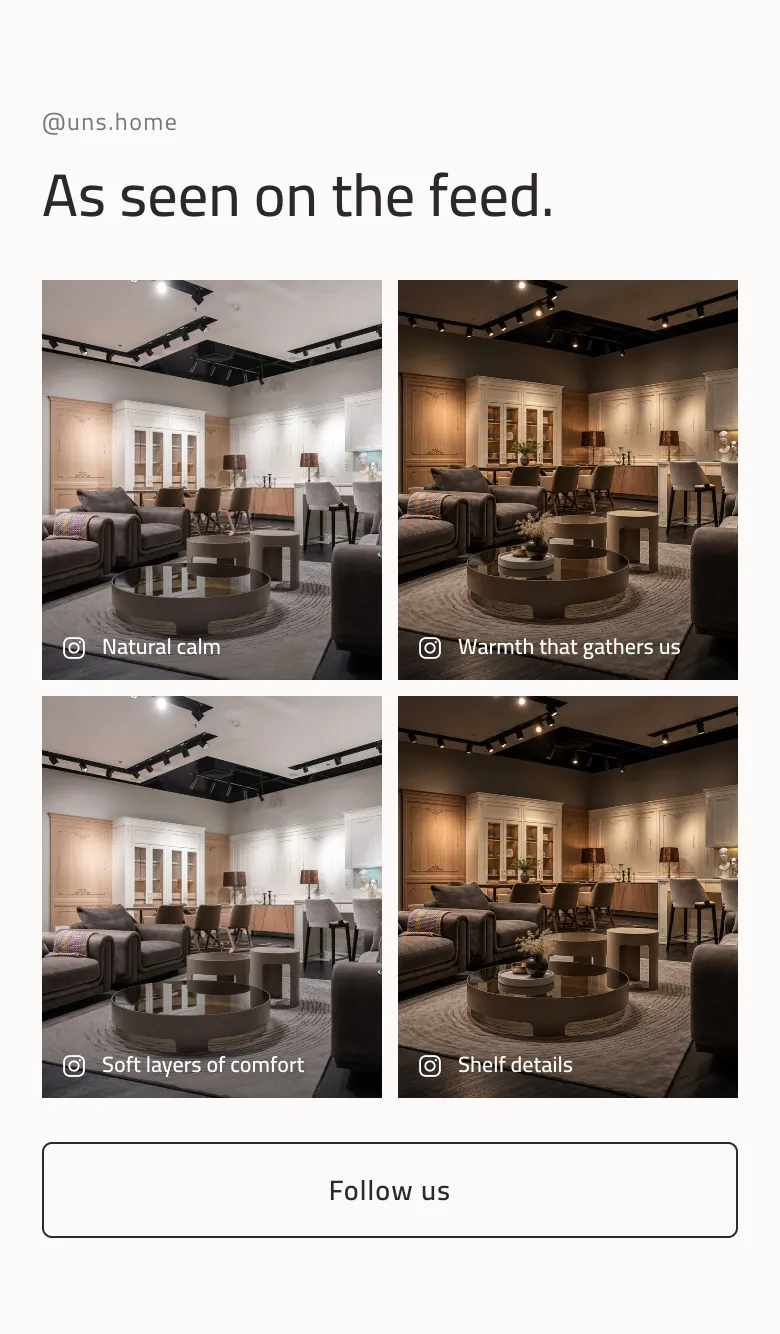
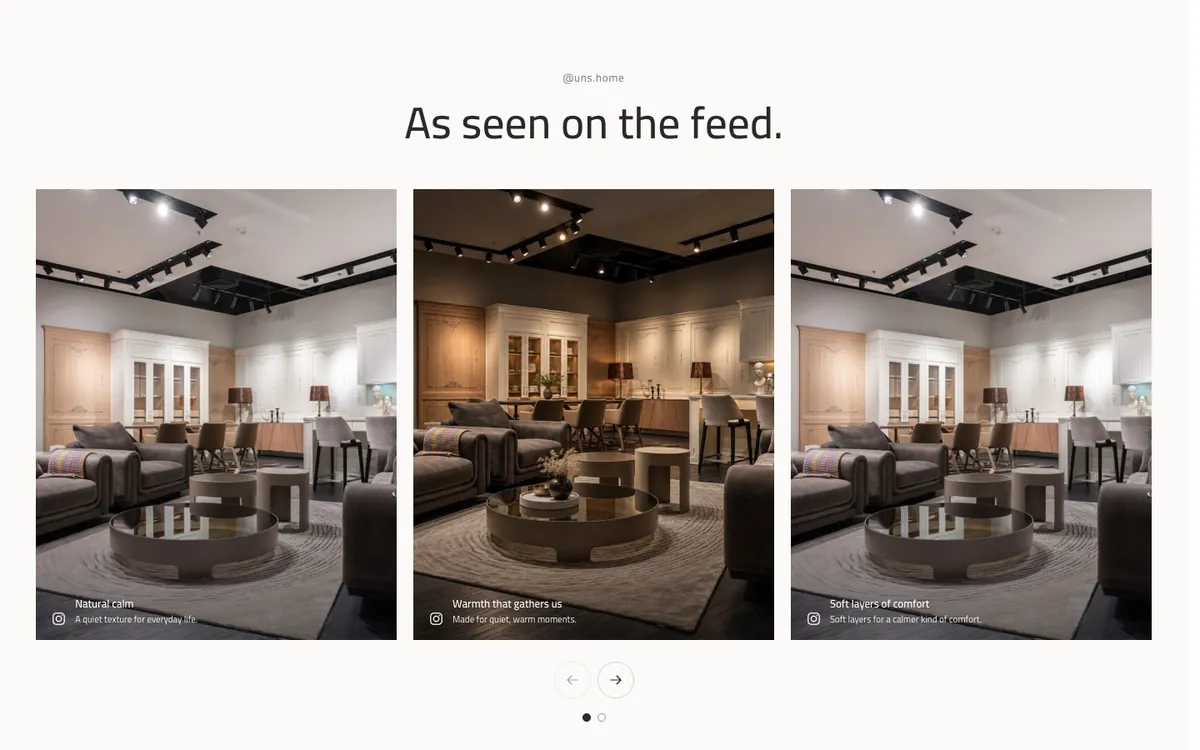
A social-media-style image gallery that you add by hand, with the account handle and a follow button.
| Device | How it behaves |
|---|---|
| Desktop | 3, 4, 5 or 6 columns, or a slider. Image ratio 4:5, 1:1 or 4:3, with text over the images always, on hover, or hidden. |
| Mobile | A grid or a rail; in the slider you choose 1, 1.5 or 2 visible images. |
Layouts: Grid or Slider
How to set it up
- Write the handle, title, description and follow button text, and set your profile link.
- Add the images (up to 12), each with a title, text and link.
- Choose Grid or Slider, then columns, ratio and gap.
Images and proportions
- Gallery images: You add them yourself (up to 12). The theme's local preview uses 720×900 px (4:5) images. Ratios: portrait 4:5, square 1:1, landscape 4:3.
These proportions are taken from the theme's code and its bundled images. Images are cropped to fill the frame (cover), so keep the main subject near the centre.
Controls in the editor
Controls table30
| Control | Type / choices | Note |
|---|---|---|
| Content | ||
| Social handle | Text | |
| Title | Text | |
| Description | Long text | |
| Follow button text | Text | |
| Your profile link (follow button) | Link (product, category, brand, page, article or external URL) | |
| Images | Repeating items (up to 12): Image, Title (shown on the image), Short text, Link (post or page), Image focal point | |
| Visible elements | ||
| Hide handle | On / off | |
| Hide title | On / off | |
| Hide follow button | On / off | |
| Text over images | Always visible · On hover / focus · Hidden | |
| Layout | ||
| Columns (desktop) | 3 · 4 · 5 · 6 | |
| Image ratio | Portrait 4:5 · Square 1:1 · Landscape 4:3 | |
| Gap between images (desktop) | Small · Medium · Large | |
| Layout | Grid (default) · Slider | |
| Images per view (mobile) | 1 · 1.5 · 2 | Shown when: Layout = Slider |
| Show navigation arrows | On / off | Shown when: Layout = Slider |
| Show pagination dots | On / off | Shown when: Layout = Slider |
| Autoplay | On / off | Shown when: Layout = Slider |
| Seconds per move | Number (3–20) | Shown when: Autoplay = on |
| Mobile layout | Two-column grid · Swipeable rail | |
| Zoom image on hover | On / off | |
| Colours & spacing | ||
| Colours, spacing and type | Background, text and accent colours · space above and below · heading weight · body size | A colour set on the section wins over the theme-wide colour. |
| Typography | ||
| Heading size | Small · Medium · Large · Extra large | |
| Content alignment (desktop) | Start · Center · End | |
Notes
- Images are not pulled automatically from your account; you upload them.
- Link each image to the post or product you want.
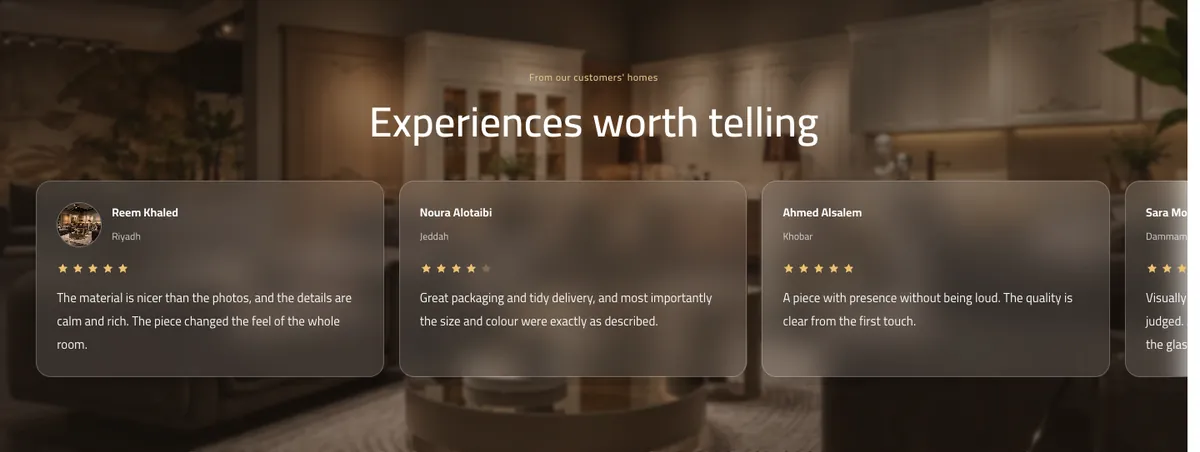
Reviews over an image
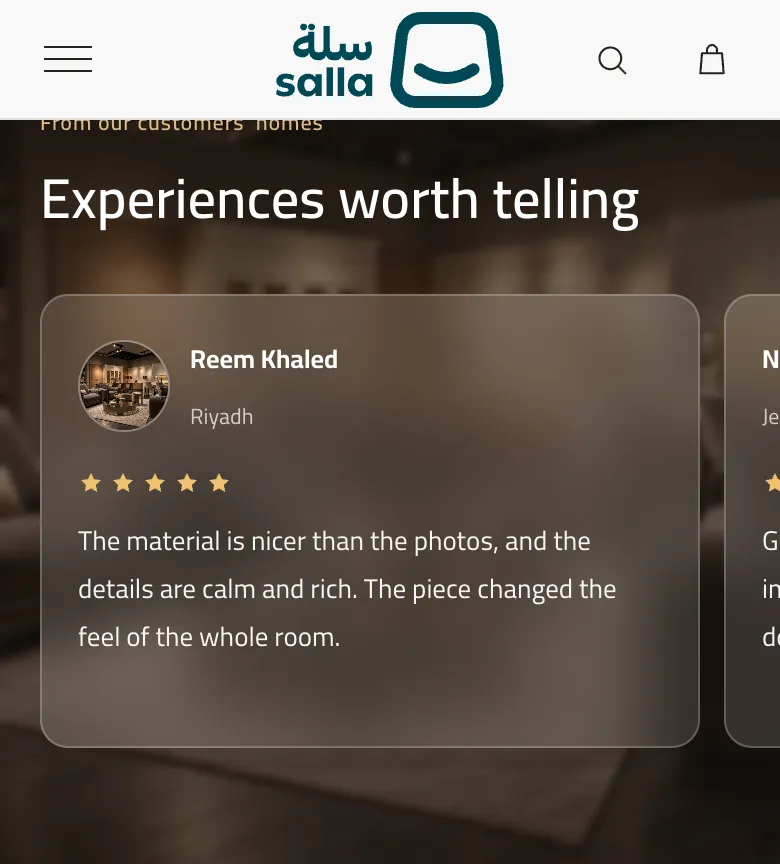
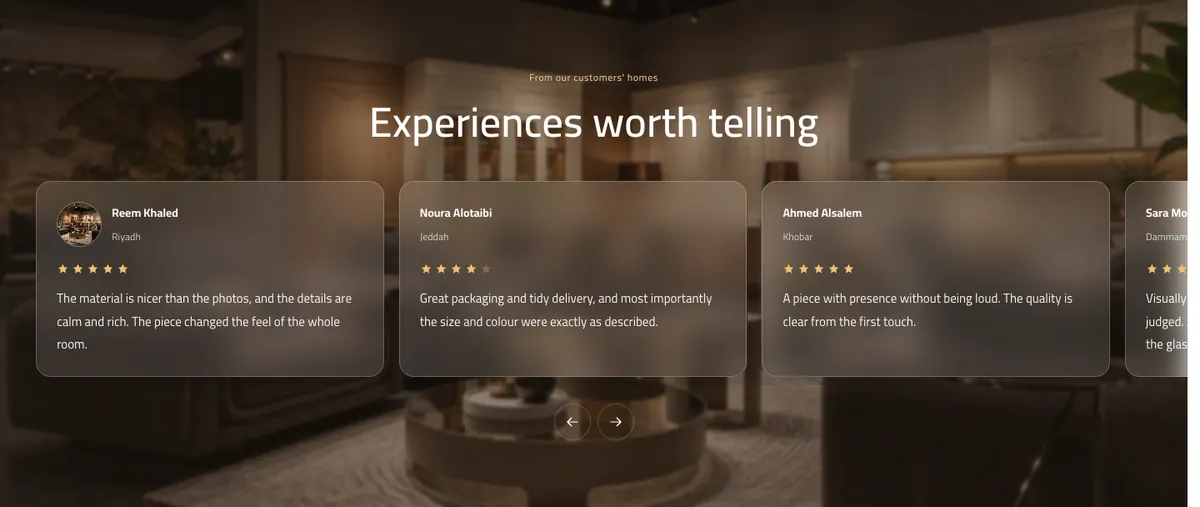
Customer reviews over a background image with a glass effect, from real store reviews or reviews you type by hand.
| Device | How it behaves |
|---|---|
| Desktop | Glass cards over a background image with an overlay and blur level you choose. |
| Mobile | An optional mobile background image and heading alignment. |
How to set it up
- Choose the reviews source: "Store" (latest or top rated) or "Manual".
- For Manual, add the reviews (up to 12): name, city, quote and rating.
- Upload the background image and set the overlay and blur level.
Images and proportions
- Background image: The bundled default is 2000×1334 px for desktop and 900×599 px for mobile.
These proportions are taken from the theme's code and its bundled images. Images are cropped to fill the frame (cover), so keep the main subject near the centre.
Controls in the editor
Controls table27
| Control | Type / choices | Note |
|---|---|---|
| Section heading | ||
| Eyebrow | Text | |
| Title | Text | |
| Description | Long text | |
| Hide small text | On / off | |
| Reviews source | ||
| Reviews source | Reviews I add myself · Store reviews from Salla | عند اختيار تقييمات المتجر تُحمَّل التقييمات الحقيقية من متجرك داخل المتصفح ولا تُستخدم القائمة اليدوية. |
| Store reviews order | Latest · Top rated | Shown when: Reviews source = Store reviews from Salla |
| Reviews | Repeating items (up to 12): Customer name, City, Review text, Rating, Customer photo (optional) | Shown when: Reviews source = Reviews I add myself |
| Show star rating | On / off | Shown when: Reviews source = Reviews I add myself |
| Auto-advance the cards | On / off | Shown when: Reviews source = Reviews I add myself |
| Auto-advance speed | Default (4.5 s) · Slow (7 s) · Fast (3 s) | Shown when: Auto-advance the cards = on |
| Show navigation arrows | On / off | Shown when: Reviews source = Reviews I add myself |
| Background | ||
| Background image (desktop) | Image | |
| Background image (mobile) — optional | Image | إذا تُركت فارغة تُستخدم صورة الكمبيوتر. |
| Mobile image focal point | Center · Top · Bottom · Left · Right | |
| Background video link (optional) | Link | ملف mp4 / webm مباشر، أو رابط YouTube أو Vimeo. |
| Show the image instead of the video on phones | On / off | |
| Overlay strength | Light · Medium · Strong | |
| Glass blur | Soft · Medium · Strong | |
| Colours & spacing | ||
| Colours, spacing and type | Background, text and accent colours · space above and below · heading weight · body size | A colour set on the section wins over the theme-wide colour. |
| Heading alignment (mobile) | Start · Center | |
| Typography | ||
| Heading size | Small · Medium · Large · Extra large | |
| Content alignment | Start · Center · End | |
Notes
- Arrows, autoplay and stars work with the Manual source.
- Store reviews depend on real reviews that exist in your store.
Banners and images
Everything about banners and images in the theme: the hero as a single banner or several, the layouts, and image proportions.
Single banner or slideshow
- In the Hero section leave “Hero mode” on “Single banner” for one image with text and a button.
- For a slideshow choose “Slideshow: several banners”, then add “Following banners” (up to 5 extra banners). Each banner has a desktop image, an optional mobile image, small text, a title, a description, a button and a link.
- Turn the arrows, dots and autoplay on or off, and set how many seconds each banner stays.
- These options only appear once you choose the slideshow.
Grid or Slider
| Section | Layouts | Related controls |
|---|---|---|
| Featured collection (tabs) | Rail or Grid | Products per view (desktop) · Layout · Grid columns (mobile) · Gap between cards |
| Product carousel | Rail or Grid | Layout · Columns (desktop) · Columns (mobile) · Gap between cards · Show pagination dots · Autoplay · Seconds per move |
| Blog / journal | Grid or Slider | Columns (desktop) · Layout · Cards per view (mobile) · Gap between cards · Show navigation arrows · Show pagination dots · Autoplay · Seconds per move · Mobile layout |
| Social gallery | Grid or Slider | Columns (desktop) · Gap between images (desktop) · Layout · Images per view (mobile) · Show navigation arrows · Show pagination dots · Autoplay · Seconds per move · Mobile layout |
Each layout's options appear only once you choose it (for example dots and autoplay for the slider, columns and gap for the grid).
Image proportions
| Section | Sizes and ratios | Source |
|---|---|---|
| Hero | Desktop 2560×1705 (close to 3:2), mobile 850×1364 (close to 5:8) | The bundled default image. Cropped to fill the section. |
| Spaces selection | 3:4, 4:5 or 1:1 on desktop, 4:5 on mobile | From the "Card ratio" control. |
| Shop by space | 4:5, and 4:3 with a single mobile column | From the section's styles. |
| Media story | 1800×1200 (3:2) for desktop, 900×600 for mobile | The bundled default image. |
| Text with image | 1800×1200 (3:2) on desktop, 4:5 on mobile, floating image 684×900 | The bundled default images. |
| Build your set (product bundle) | 4:5 | Product images. |
| FAQ | 1400×934 on desktop, 900×599 for mobile (16:10 on mobile) | The bundled default image. |
| Testimonials | 4:5, 1:1 or 4:3 | From the "Image ratio" control. |
| Blog / journal | 4:3, 16:10, 1:1 or 4:5 | From the "Image ratio" control. |
| Social gallery | 4:5, 1:1 or 4:3 | From the "Image ratio" control. |
| Reviews over an image | 2000×1334 for desktop, 900×599 for mobile | The bundled default background image. |
We do not list recommended sizes beyond these. Upload images a little larger than the widest size they will be shown at, and avoid text inside images because cropping may cut it off.
Storefront features
What the theme controls and what Salla manages itself, page by page.
| Feature | Controlled by UNS Studio | Managed by Salla |
|---|---|---|
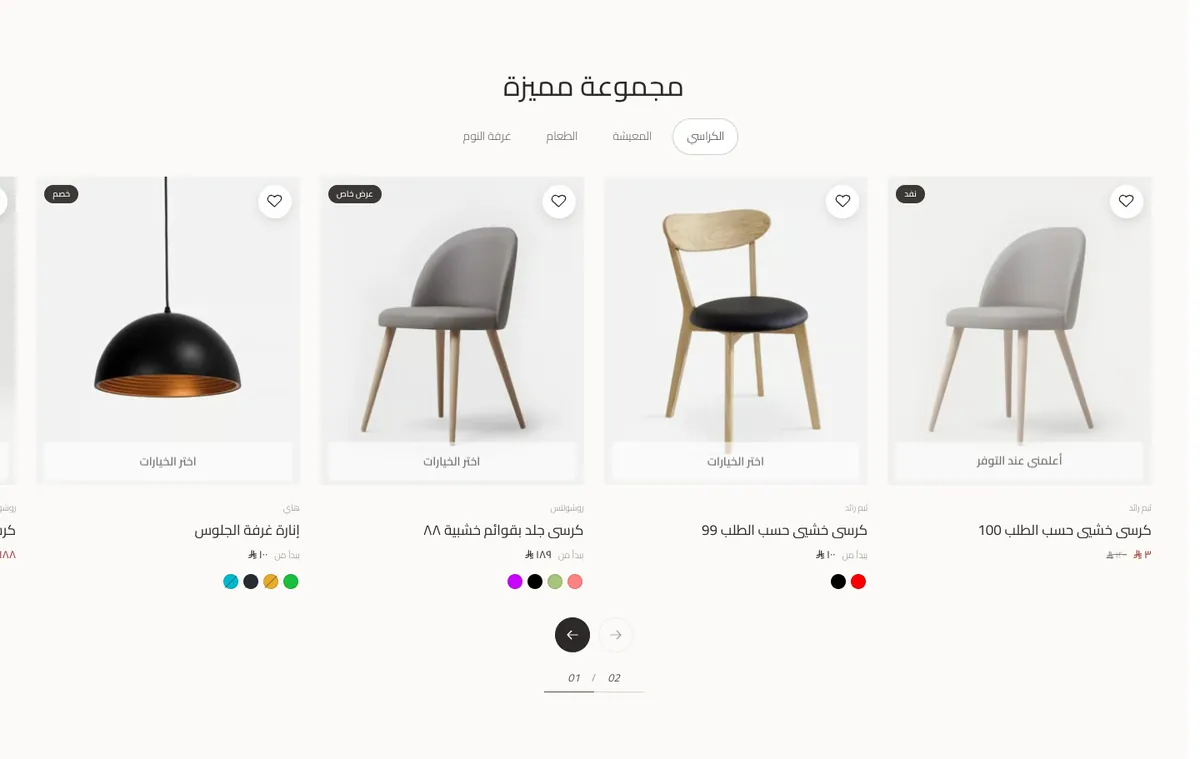
| Product card | Colour swatches, store name, quick add, wishlist heart, quick view, image ratio and fit | Product data, prices and options |
| Category page | Banner, text position, columns, filter and sort bar | Categories, products and filter options |
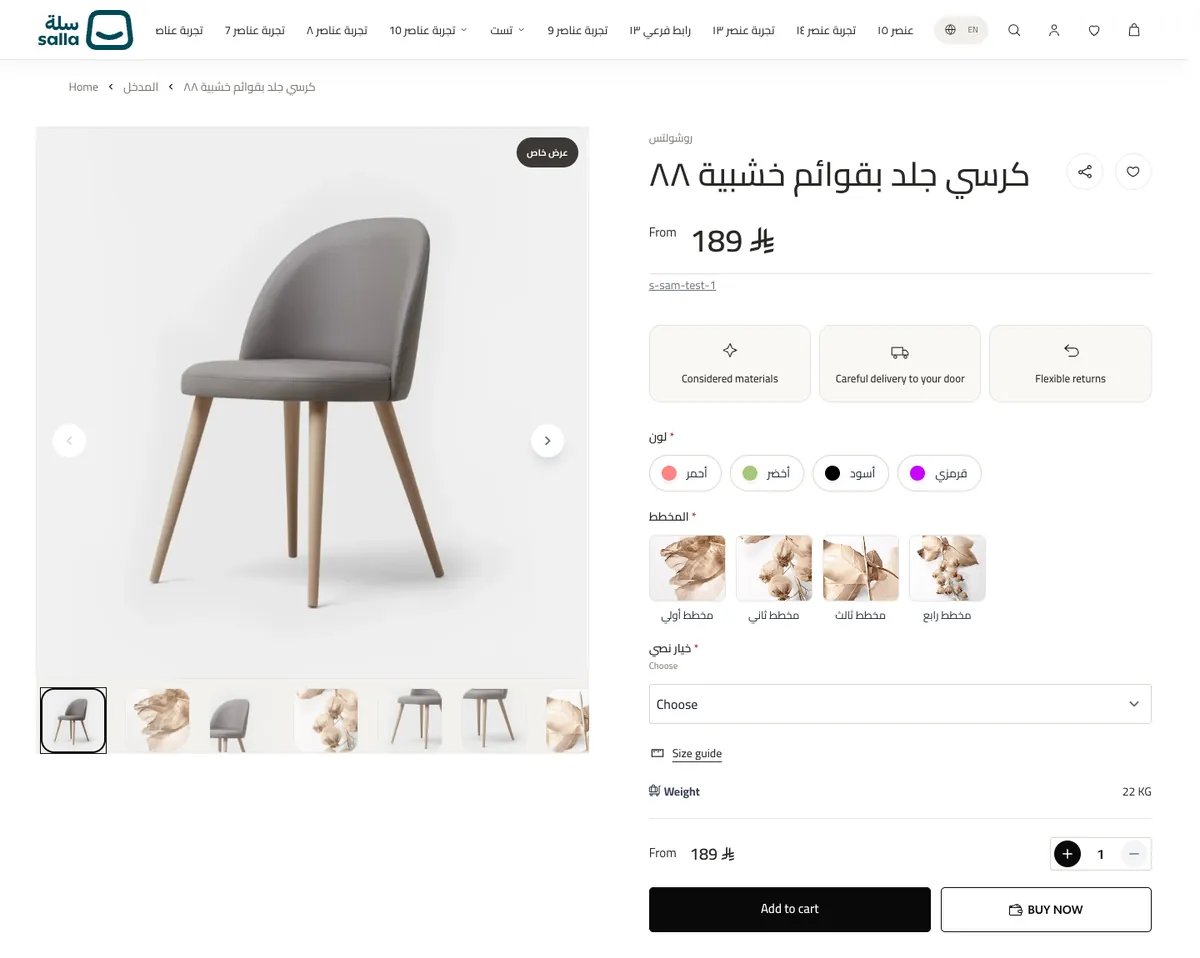
| Product page | Rating, wishlist, benefits strip, size guide, shipping and care panels, related products, customer reviews | The product gallery, options, prices, stock, and the Buy now and Apple Pay buttons |
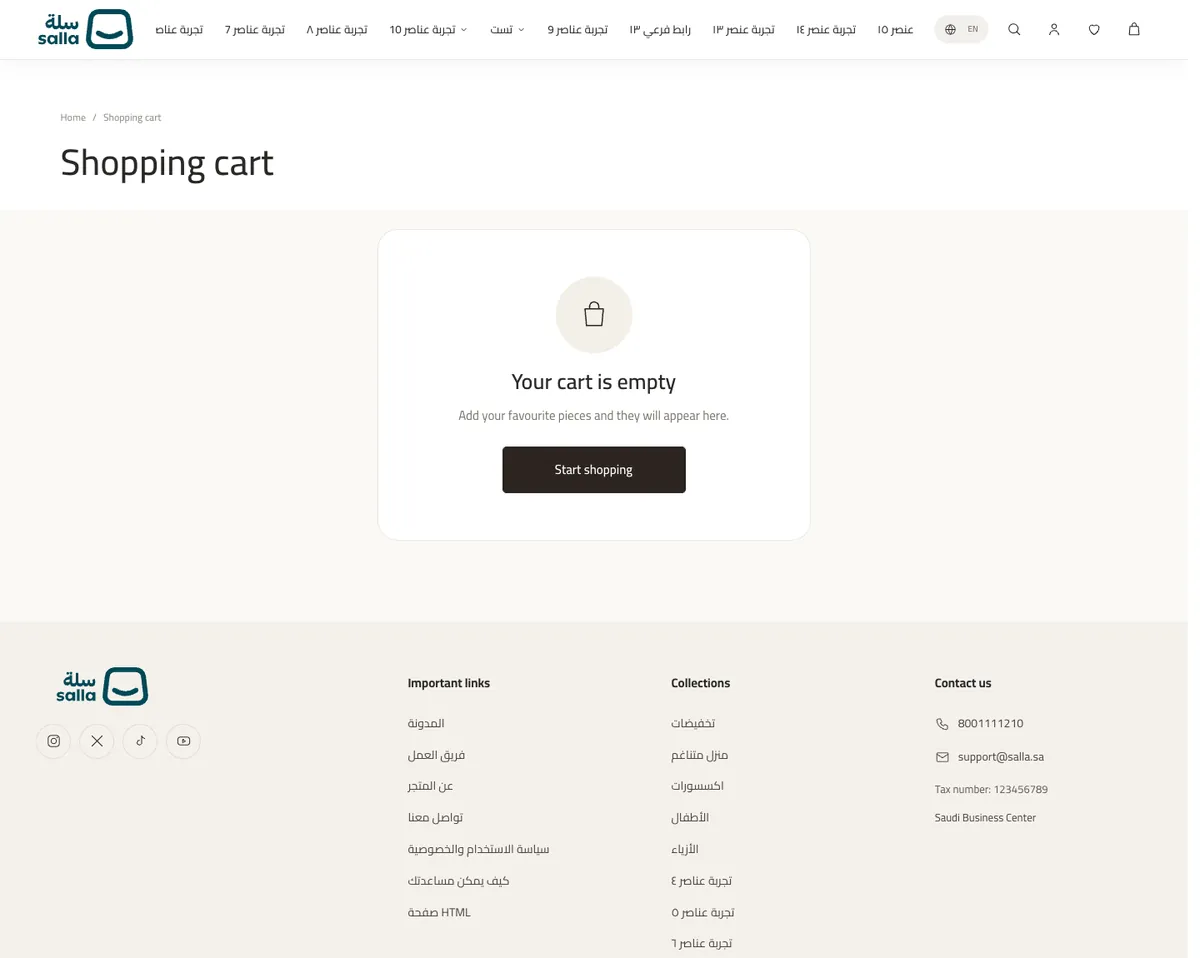
| Cart | Title, button texts, coupon field, trust icons, sticky mobile bar, empty cart | Cart logic, totals, discounts and checkout |
| Header | Logo, search, account, wishlist, language and currency, mega menu, mobile bottom bar | How search, account, wishlist, languages and currencies work |
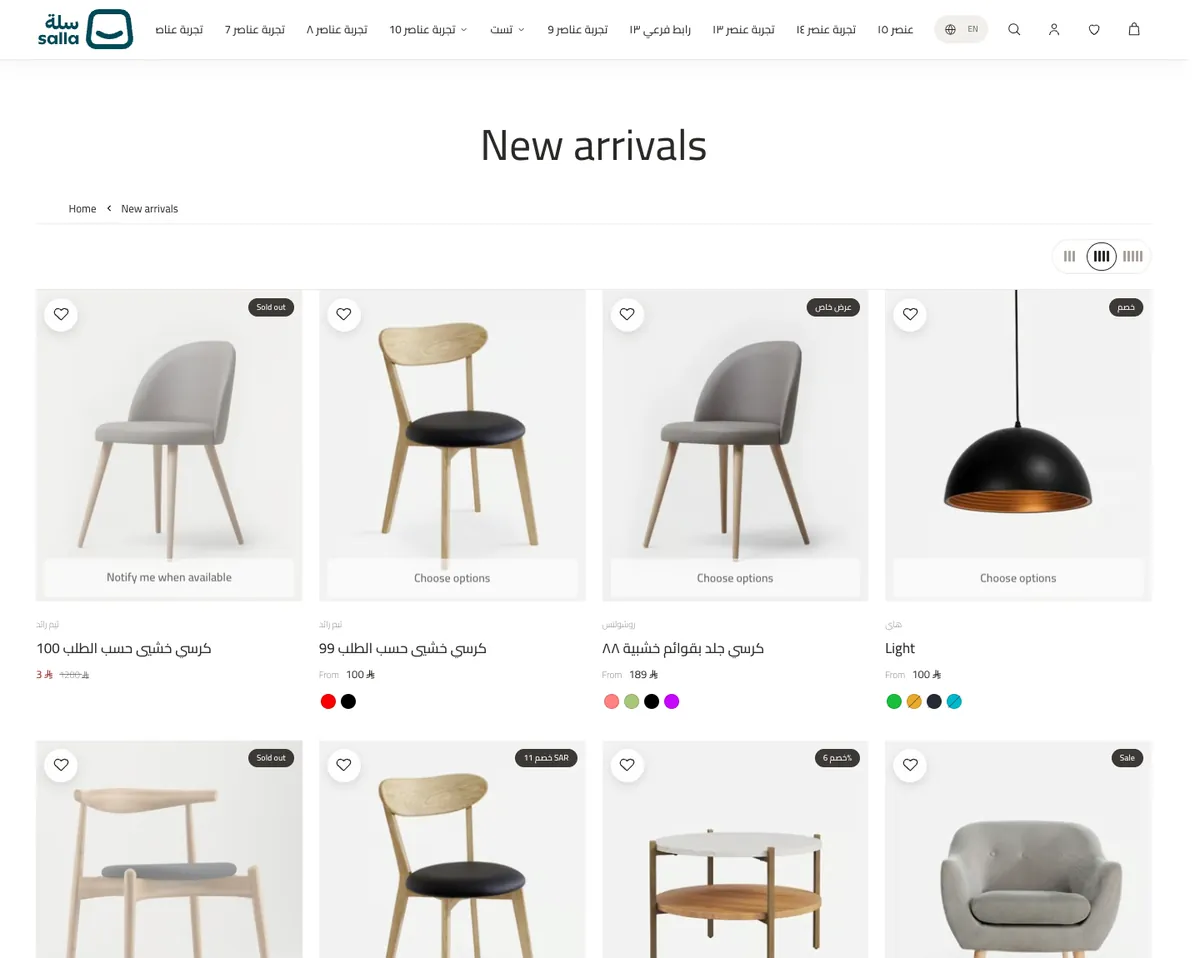
Product cards8
| Control | Type / choices | Note |
|---|---|---|
| Hide colour swatches | On / off | تظهر دوائر الألوان تلقائيًا إذا كان للمنتج خيار لون. |
| Max swatches shown | 3 · 4 · 5 · 6 · 8 | |
| Hide store name above product name | On / off | |
| Hide quick-add button | On / off | يظهر على الجوال دائمًا وعلى الكمبيوتر عند مرور المؤشر. |
| Card image ratio | Default · Square 1:1 · Portrait 4:5 · Portrait 3:4 · Portrait 5:6 · Landscape 4:3 | |
| Card image fit | Default · Fill (crop) · Show whole image | |
| Hide wishlist heart | On / off | |
| Hide quick-view icon | On / off |
Category page15
| Control | Type / choices | Note |
|---|---|---|
| Hide banner | On / off | |
| Default banner image (desktop) | Image | تُستخدم لكل التصنيفات التي ليس لها بانر خاص أدناه، وإلا تُستخدم صورة التصنيف نفسها، وإن لم توجد تظهر صورة الثيم الافتراضية. |
| Default banner image (mobile) | Image | تستخدم صورة الكمبيوتر إذا تُركت فارغة. |
| Banner per category | Repeating items (up to 30): Category, Image (desktop), Image (mobile), Different title (optional), Hide text for this category | |
| Hide title and description | On / off | |
| Hide description only | On / off | |
| Text position — horizontal | Start · Center · End | |
| Text position — vertical | Top · Middle · Bottom | |
| Banner height (desktop) | Automatic · Short · Medium · Tall · Extra tall | |
| Banner height (mobile) | Automatic · Short · Medium · Tall · Extra tall | |
| Overlay strength | None · Light · Medium · Strong | |
| Text colour | Colour | |
| Columns (desktop) | 3 · 4 | |
| Columns (mobile) | 1 · 2 | |
| Hide filter & sort bar | On / off |
Product page13
| Control | Type / choices | Note |
|---|---|---|
| Hide rating | On / off | |
| Hide wishlist button | On / off | |
| Hide benefits strip | On / off | |
| Product benefits | Repeating items (up to 5): Icon, Text | إلى أن تضيف مميزاتك تظهر مميزات افتراضية (مثل «شحن آمن» و«استبدال مرن»). تأكد أنها تطابق سياسات متجرك، أو أخفِ الشريط. |
| Hide size guide | On / off | |
| Hide Buy now button | On / off | يظهر الزر (وApple Pay عند توفره) فقط إذا فعّلت المنصة الشراء السريع للمتجر. |
| Hide payment logos | On / off | |
| Hide shipping / care section | On / off | |
| Info panels (shipping, care…) | Repeating items (up to 6): Title, Text | |
| Hide related products | On / off | |
| Related products title | Text | |
| Hide customer reviews | On / off | |
| Reviews title | Text |
Size guide11
| Control | Type / choices | Note |
|---|---|---|
| Title | Text | |
| Intro text | Text | |
| Size chart image | Image | اختياري: ترفع صورة جاهزة للجدول. |
| First column title | Text | افتراضي: المقاس |
| Column 1 title | Text | مثال: العرض (سم) |
| Column 2 title | Text | |
| Column 3 title | Text | |
| Column 4 title | Text | |
| Chart rows | Repeating items (up to 14): Name / size, Column 1, Column 2, Column 3, Column 4 | |
| Measuring tips | Repeating items (up to 6): Title, Text | تستبدل تبويب (طريقة القياس). |
| Note | Long text |
Cart page13
| Control | Type / choices | Note |
|---|---|---|
| Page title | Text | |
| Hide page title banner | On / off | يخفي المسار والعنوان أعلى الصفحة (يبقى العنوان لقارئات الشاشة). |
| Checkout button label | Text | |
| Continue shopping label | Text | |
| Hide continue shopping link | On / off | |
| Hide coupon field | On / off | |
| Note under checkout button | Text | مثال: الدفع آمن ومشفّر. اتركها فارغة لإخفائها. |
| Don't pin the checkout bar on mobile | On / off | عند التفعيل يبقى زر الدفع داخل بطاقة الملخص بدل شريط ثابت أسفل الشاشة. |
| Hide trust icons | On / off | تأكد أن العبارات تنطبق على متجرك، أو عدّلها من الحقول أدناه أو أخفِها. |
| First icon text | Text | |
| Second icon text | Text | |
| Third icon text | Text | |
| Hide payment methods bar | On / off | تُعرض طرق الدفع المفعّلة فعليًا في متجرك. |
Empty cart3
| Control | Type / choices | Note |
|---|---|---|
| Empty cart title | Text | |
| Empty cart text | Long text | |
| Empty cart button label | Text |
Arabic and English
- The page direction follows the store language: right to left for Arabic, left to right for English.
- Every text you type in the editor is saved for the language you are editing, so switch language in the editor and write the other text.
- Images, links and colours are not text: set them once and they serve both languages.
- Text is not translated automatically: a text you did not write for a language will not appear translated, so fill in both languages.
Troubleshooting
| Problem | Likely cause | Fix |
|---|---|---|
| The home page is empty | The theme does not force a ready-made home page; the merchant adds the sections. | Open the editor and add sections from the section catalogue. |
| A section shows no products or categories | The products or categories were not picked in the section. | Open the section's controls and pick products or categories from your store. |
| The hero slideshow shows a single banner | "Hero mode" is still "Single banner", or no "Following banners" were added. | Choose "Slideshow: several banners" and add banners. |
| I cannot find the columns, dots or autoplay controls | These controls appear only with the layout they belong to. | Change "Layout" (Grid or Rail/Slider), then look for them. |
| The image crops badly on mobile | Mobile uses the desktop image, cropped to fill the frame. | Upload a mobile image, or set the mobile "Image focal point". |
| Text is hard to read over the image | The image is light or the overlay is weak. | Raise the "Overlay strength" for desktop and mobile in the section. |
| A colour I changed in the global settings does not show in a section | The section has its own colour, which wins over the theme colour. | Clear the section's own background or text colour. |
| The text appears in one language only | Text is saved per language. | Switch the editor language and fill in the other language. |
| The video does not play on phones | Phones show the image instead of the video if that is on, or video playback on phones is off in the section. | Check "Show the image instead of the video on phones" and "Play the video on phones". |
| I cannot pick a product in "Build your set" | The section accepts simple products only, without options, bundles, file uploads or a custom form. | Use a simple product. |
| I do not see my changes on the store | The changes were not saved or published, or you are looking at the local editor preview. | Save and publish from Salla's editor. In local development, twilight.preview.json never changes any merchant's store. |
| Working locally and the store opens on the maintenance page | The store is in maintenance mode. | Add ?utm_source=dashboard&identifier=STORE_ID to the first request, and open /ar or /en, never /. |
FAQ
Is the theme available in the Salla theme store yet?
Do I need to write code?
How many home sections are there?
Can I show more than one banner in the hero?
What is the difference between Grid and Slider?
Does the theme support Arabic and English?
Are the cart, checkout and wishlist part of the theme?
Is there a version for Zid?
Where do I ask for help?
About this guide
This guide covers UNS Studio for Salla (package version 1.0.0). The controls tables are generated from the theme's own files, so when the theme changes the guide is regenerated from them.
Last updated October 26, 2026