Everything you need to install and customise Frameshift, a Shopify Online Store 2.0 theme for gaming hardware stores. All design work happens in Online Store, Themes, Customize. No code editing is needed. Version 1.0.0.
1. Install the theme
- UploadIn Shopify admin go to Online Store, Themes, Add theme, Upload zip file, and choose the Frameshift zip.
- PreviewClick Customize to preview before publishing. Publishing replaces your live theme, so publish only when you are ready.
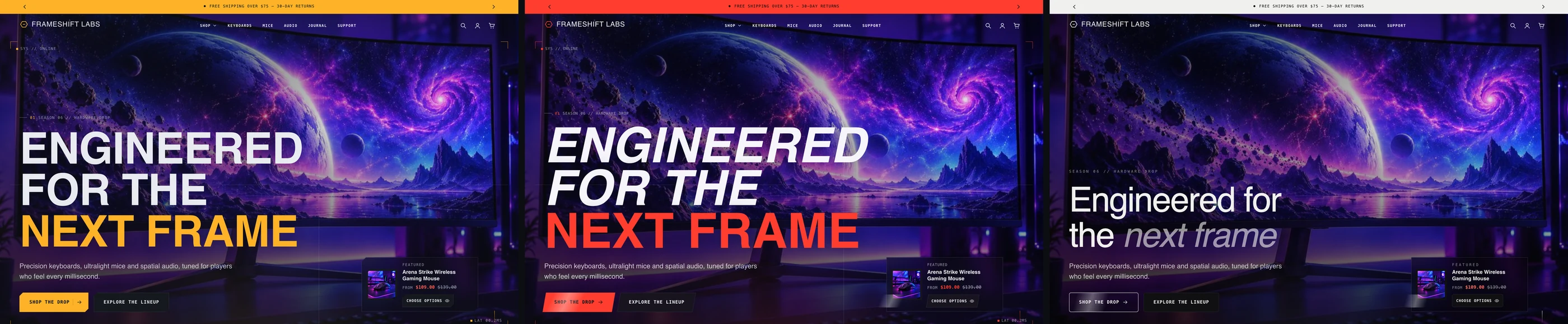
- Choose a presetIn Theme settings, Experience mode, pick Frameshift, Arena or Void.
- Add contentFollow the recommended order in section 2.
The three presets
| Preset | Best for | Starting homepage |
|---|---|---|
| Frameshift | Premium, immersive gaming hardware stores | 14 sections: hero, ticker, category showcase, performance, keyboard, explorer, coverflow, horizontal showcase, video, countdown, reviews, articles, FAQ, finale |
| Arena | Esports gear and high-energy product launches | 11 sections, with the countdown drop and the video first |
| Void | Minimal, quiet gaming technology | 8 sections: hero, collection, performance, catalogue, craft, reviews, FAQ, finale |
A preset sets colours, fonts, corner shapes, button and card style and the motion personality together. Switching presets changes the look but keeps your text, images and products. Each preset also ships its own homepage, product page and collection page layout, which Shopify applies when you install from that preset.
2. Set up your store (recommended order)
Navigation
- Create a
main-menuin Online Store, Navigation. Nested links become mega-menu columns. - Create a
footermenu. - To add an image promo to a mega menu, add a Mega menu promo block to the Header and enter the exact title of the top-level item.
- The account icon uses Shopify’s account component and the
customer-account-main-menumenu.
Collections
Create one collection per category, for example keyboards, mice, headsets, monitors, controllers, chairs and accessories. The category showcase, product explorer, coverflow and setup builder read from them.
Product metafields (optional)
Create these in Settings, Custom data, Products. They power the theme’s spec features.
| Key | Type | Used by |
|---|---|---|
custom.specs | Multi-line text, one Label: Value per line | Key specs tiles, Specifications, Spec sheet |
custom.highlights | List of single-line text | Product highlights |
custom.fps_benchmarks | Multi-line text | FPS benchmarks block |
custom.games_ready | Multi-line text | Games it can run block |
Star ratings appear automatically when a reviews app writes Shopify’s standard reviews.rating metafield. For filters, related products and complementary products, install the free Search and Discovery app.
3. Theme settings
Open Theme settings in the editor. Every group applies to the whole store.
| Group | What you control |
|---|---|
| Experience mode | The preset, HUD details, film grain and scanline texture |
| Logo and favicon | Logo, desktop and mobile logo width, favicon |
| Colors | Colour schemes: background, gradient, surface, text, muted text, accent, secondary accent, borders, sale and success colours, accent glow. Every section has a Color scheme picker |
| Typography | Heading and body fonts from Shopify’s library, sizes, heading case and spacing, monospace labels |
| Layout | Page width, space between sections, grid gap |
| Shapes and borders | Chamfered, rounded or sharp corners, corner size, border thickness |
| Buttons | Solid, outline or split style, magnetic hover, uppercase |
| Product cards | Style, image ratio and fit, second image on hover, vendor, quick add, swatches, rating, hover effect, 3D tilt |
| Badges | Sale badge style, sold-out badge, tag prefix for custom badges (tag a product badge:Staff pick) |
| Motion | Intensity, speed and a separate switch for reveals, kinetic type, parallax, scroll scenes, cinematic effects, cursor and page transitions, plus mobile behaviour |
| Media | Background video playback policy, skip autoplay for visitors using data saver |
| Cart | Drawer or page, order notes, free shipping goal, empty-cart recommendations |
| Search | Predictive search, vendor and price in results |
| Social media | Profile links shown in the footer |
| Demo content | Show labelled placeholder artwork when a section has no products or images yet |
Motion guidance
- Cinematic turns on every effect you have enabled. Balanced and Subtle calm things down. Off gives a fully static store.
- Visitors who turned on Reduce motion on their device always get gentle fades only.
- Mobile motion defaults to Reveals only. Pinned scroll scenes and the horizontal showcase become normal swipeable layouts on phones.
4. Homepage sections




Add sections with Add section in the left sidebar. There are 45 sections you can add and reorder. Every section has a colour scheme and top and bottom padding. Most have an index number, eyebrow, heading and text. Italic text inside a heading renders in the accent colour.
| Section | Tips |
|---|---|
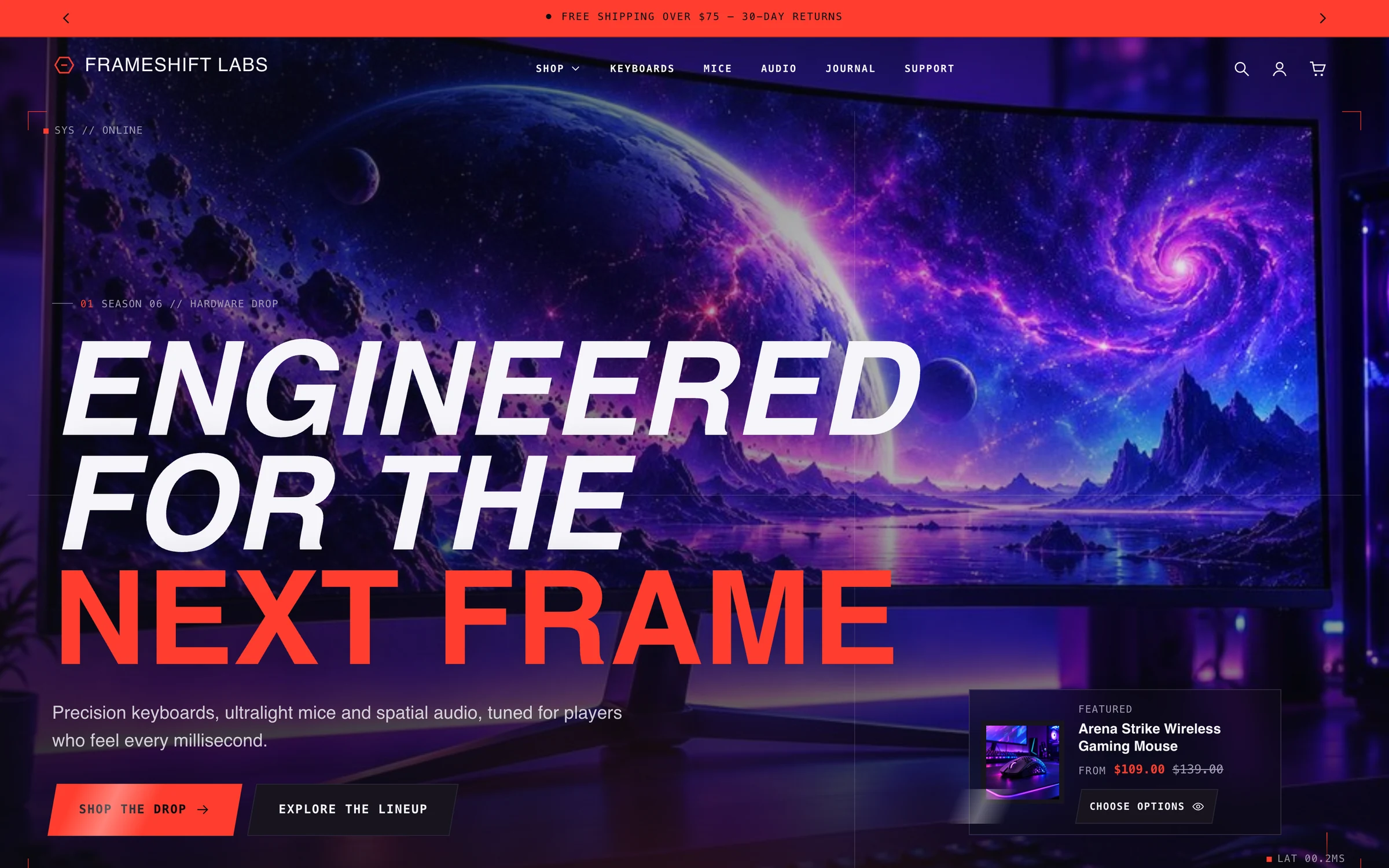
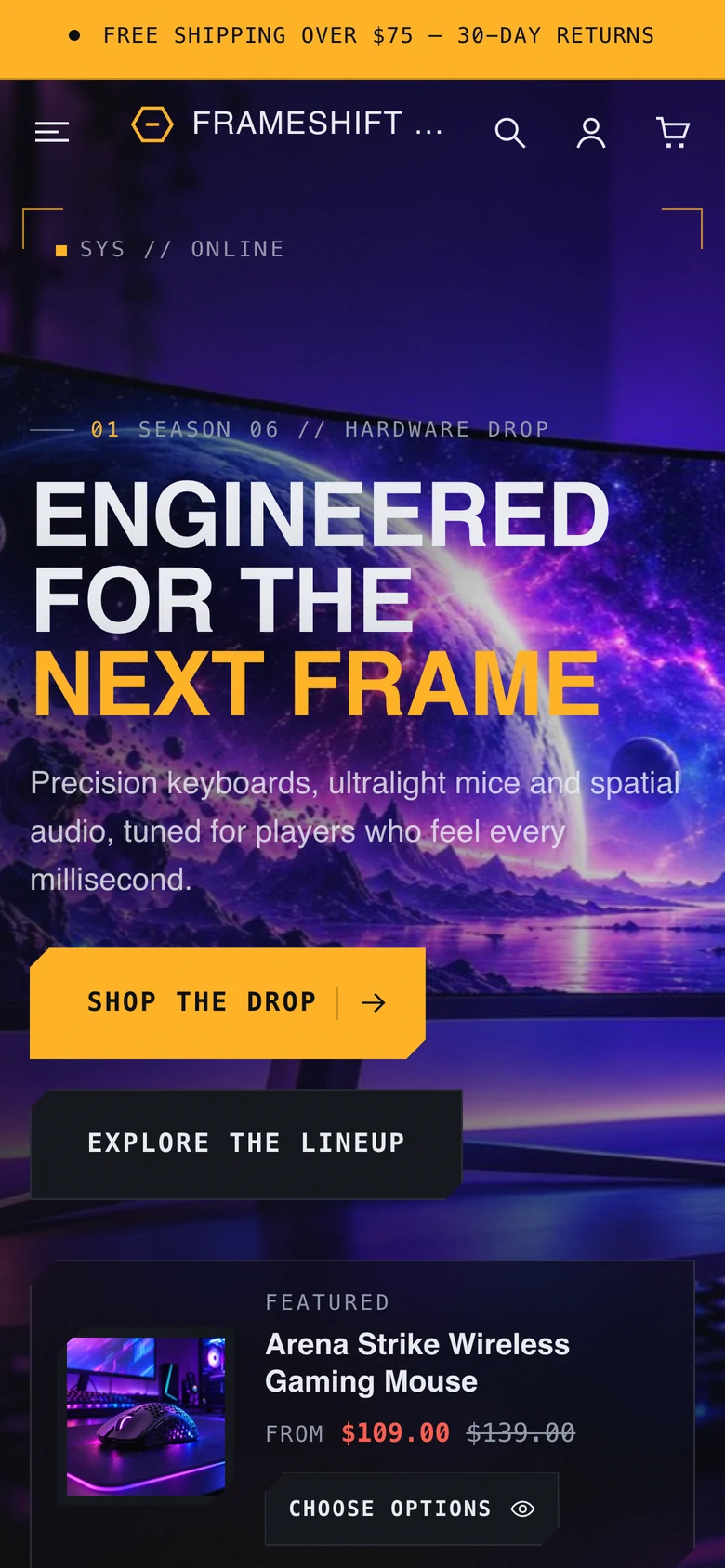
| Cinematic hero | Use a 2400 px wide desktop image and a portrait mobile image. The optional foreground image works best as a transparent PNG cut-out. Background video is always muted |
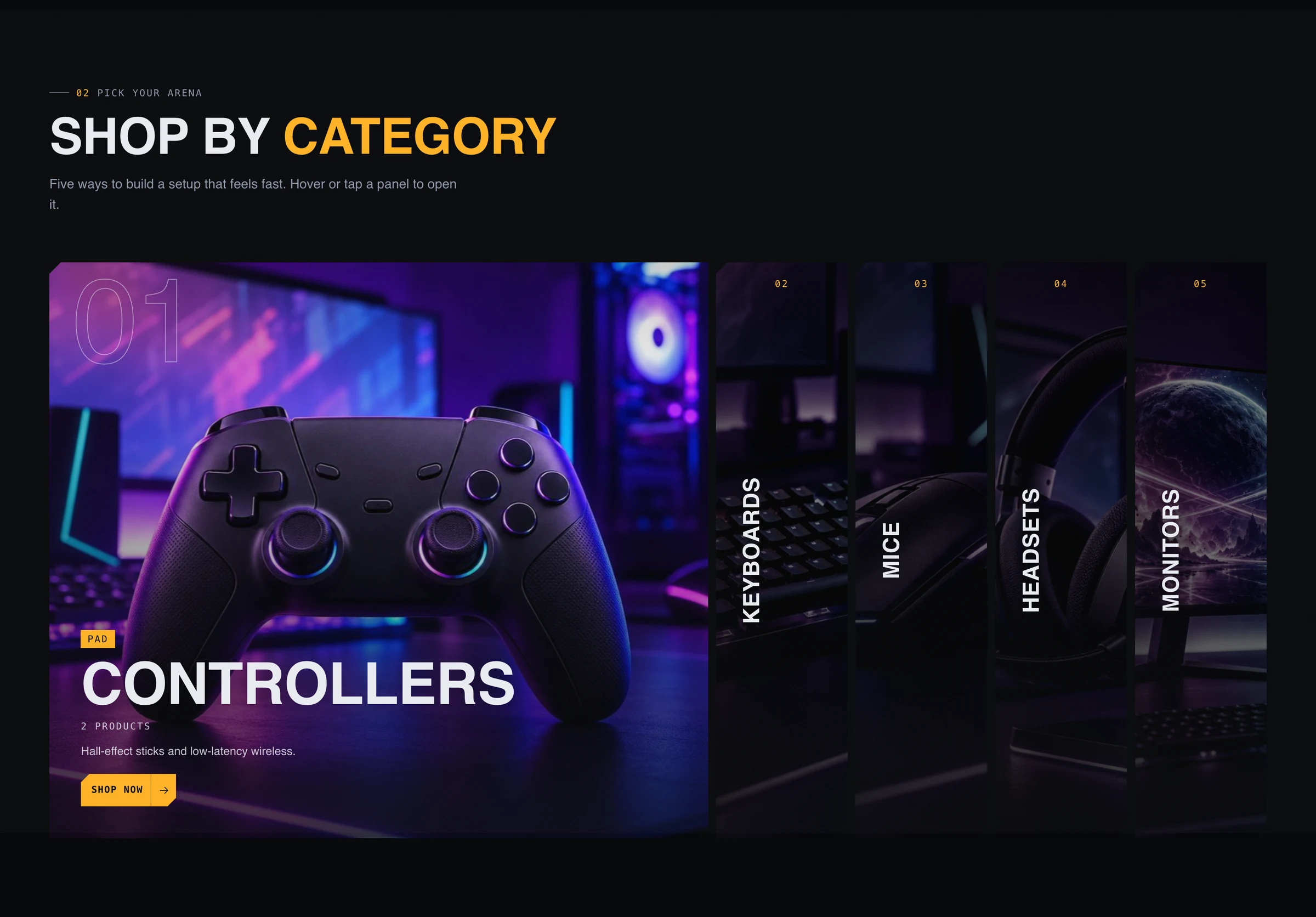
| Category showcase | One panel per collection, each with a desktop and a mobile image. Panels open on hover or tap |
| Cinematic video | Upload a video to Shopify or paste a YouTube or Vimeo link. Choose click to play or a muted background loop. In click-to-play mode nothing heavy loads until the visitor presses play |
| Keyboard playground | A full keyboard that lights up from real keystrokes. Visitors choose lighting, colour, switch feel and sound. On phones the case pans sideways and keys stay at least 24 px |
| Performance showcase | Enter your own tested figures and state the test conditions in the footnote |
| Product explorer | One block per collection tab |
| Product coverflow | A 3D carousel of products from a collection or a hand-picked list |
| Horizontal showcase | Mix story, product and stat panels. On large screens it scrolls sideways as visitors scroll down; on phones it is a swipe row |
| Countdown campaign | Enter the end date as YYYY-MM-DD HH:MM and choose the time zone. The timer stays hidden until a valid future date is set |
| Product theater | Pick a hero product. Callout positions are percentages of the stage. Only write callouts you can stand behind |
| Setup builder | One step per category. Customers build a whole setup and add it to the cart in one click |
| Comparison table | Up to four products. Rows use Label | namespace.key; products without that metafield show a dash |
| Interactive hotspots | Set desktop and mobile positions separately because crops differ |
| Before and after, Spotlight reveal, Loadout quiz, Scroll story, Stacked cards, Bento grid | Image-led storytelling sections with their own blocks |
| Testimonials | Autoplay always includes a pause control |
| FAQ | Groups and questions; adds FAQ structured data when switched on |
| Finale call to action | Raise the overlay opacity if the background image is busy |
Sections that have nothing to show yet (no product or image chosen) display labelled placeholder artwork while Demo content is on. Turn it off in Theme settings once your store is filled in.
5. Product page
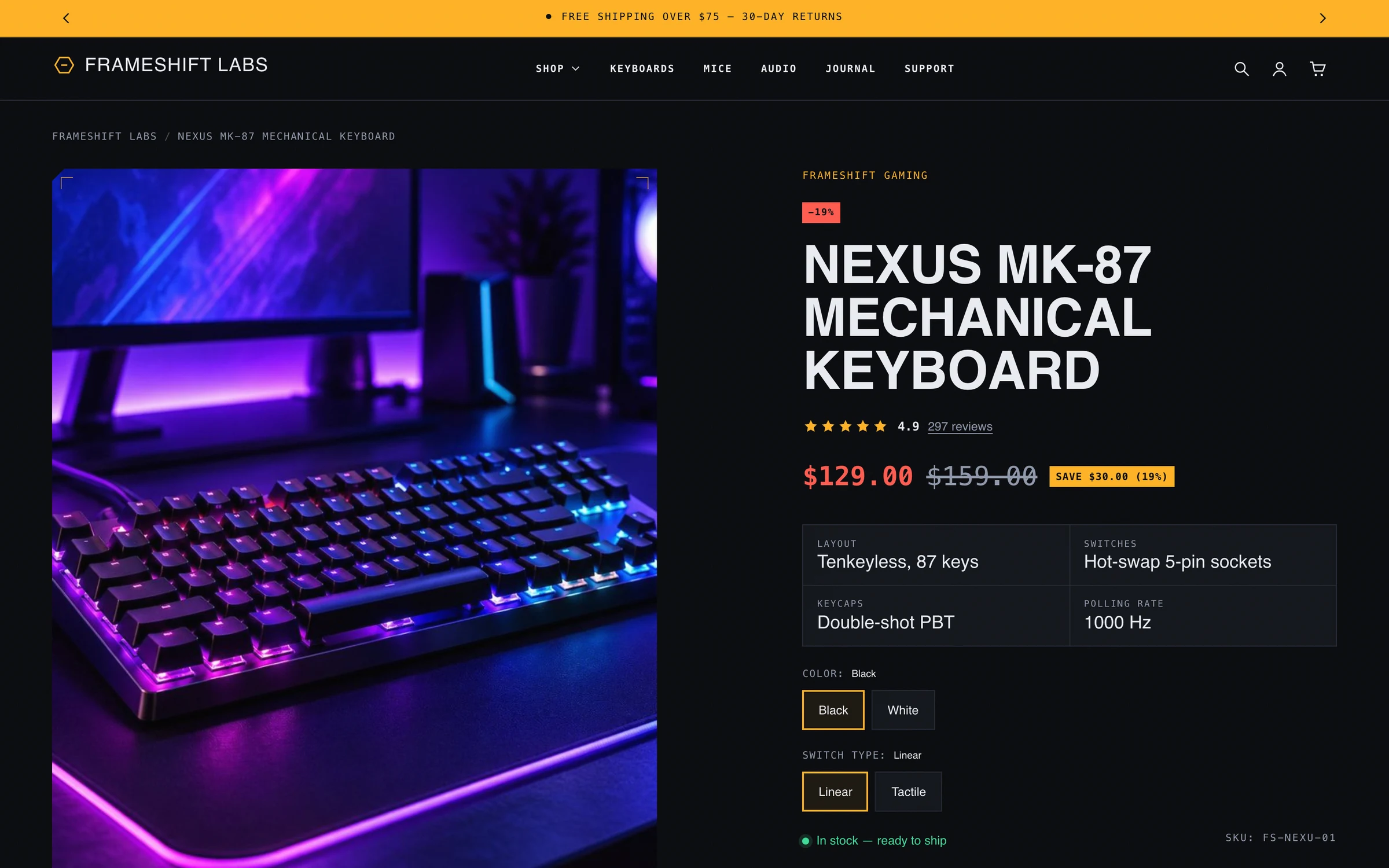

The Product information section is built from individual blocks that you can reorder, add and remove: vendor, title, price, rating, text, key specs, variant picker, buy buttons, delivery, inventory, description, highlights, specifications, FPS benchmarks, games it can run, collapsible tab, trust icons, share, complementary products, Custom Liquid and app blocks.
Section settings cover the gallery layout (thumbnails, stacked or grid), image ratio and fit, zoom and full-screen viewer, sticky details column, the sticky mobile add-to-cart bar and breadcrumbs.
Gaming performance blocks
Both blocks show nothing for a product without data, so a keyboard page stays clean while a PC page gets the full panel.
FPS benchmarks shows bars of average frames per second per game. Create a multi-line text metafield (default custom.fps_benchmarks) with one game per line:
Game | Resolution | Preset | FPS
Cyberpunk 2077 | 1440p | Ultra | 112
Short forms Game | Preset | FPS and Game | FPS also work. Settings: heading, subheading, metafield key, fallback lines, maximum games, what FPS a full bar equals, the smooth and high-refresh colour thresholds and a footnote.
Games it can run lists the games a PC or laptop handles and at what quality. Use a multi-line text metafield (default custom.games_ready):
Game | Quality | Resolution | FPS
Elden Ring | ultra | 4K | 60
Quality is ultra, high, medium or low; resolution and FPS are optional. Settings: heading, subheading, metafield key, fallback lines, how many games show before Show all, quality legend, resolution and expected FPS on or off, and a footnote. Use real, measured numbers.
6. Collection and search pages

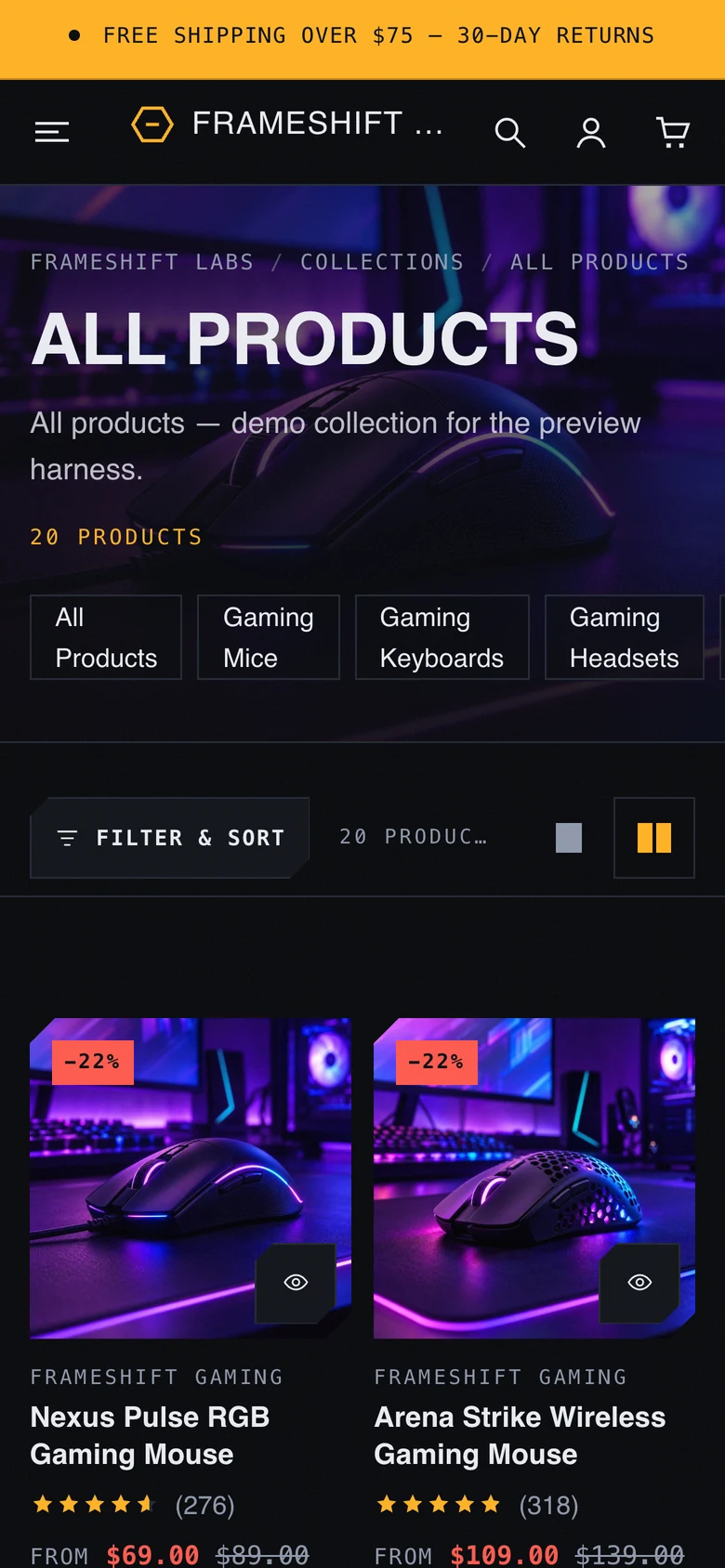
The Product grid section controls the banner image and height, products per page, desktop and mobile columns, load more or page numbers, a promo tile and its position, category chips, the density toggle, and filtering and sorting. Configure the filters themselves in the Search and Discovery app.
7. Cart, search and account
- Cart: choose a slide-out drawer or a cart page in Theme settings, Cart. Order notes, discounts, a free shipping goal, upsells and accelerated checkout buttons are supported.
- Search: predictive search with products, collections, pages and articles.
- Account: Shopify’s account component in the header on desktop and mobile. Customer accounts must be enabled in Settings, Customer accounts.
- Pickup availability, selling plans and pre-order labels appear on the product page when your store uses them.
8. Languages and right to left
English and Arabic storefront text are included. Add Arabic in Settings, Languages; Arabic pages switch to right-to-left automatically, and so do Hebrew, Persian and Urdu. Translate your own content (section text, products, menus) with Shopify’s Translate and Adapt app. Theme editor labels are in English.
9. Performance and accessibility


- Images are responsive and lazy loaded; the hero image loads first.
- Motion respects the visitor’s Reduce motion setting, and content stays visible when JavaScript is off.
- Interactive controls are at least 44 px high in the header and 24 px elsewhere, with visible focus states and a skip link.
- Lighthouse accessibility scored 100 on every page tested in the theme’s demo render.
10. Troubleshooting
| Symptom | Fix |
|---|---|
| A section shows placeholder artwork | It has no product, collection or image yet. Choose one, or turn off Demo content in Theme settings. |
| The FPS or games block does not appear | The product has no value in the metafield and no fallback lines. Add the metafield, or fill the block’s fallback lines. |
| Comparison rows show a dash | That product has no value in the metafield named in the row. |
| Free shipping bar is missing | Set a goal in Theme settings, Cart. It only shows to customers paying in your store’s default currency. |
| Countdown is not visible | Set a valid end date in the future. |
| The account icon is missing | Turn on customer accounts in Settings, and make sure Show account icon is on in the Header. |
| Motion feels like too much | Theme settings, Motion: choose Balanced or Subtle, or switch off individual effects. |
| A video does not autoplay | Browsers block autoplay with sound and on data saver. Background videos are always muted and fall back to the poster image. |
11. Changelog
1.0.0 Initial release: three presets, 45 sections, 21 product page blocks, gaming performance blocks, English and Arabic storefront text, Shopify account component and Follow on Shop.
Need help? Contact support · Read the FAQ
Last updated October 24, 2026